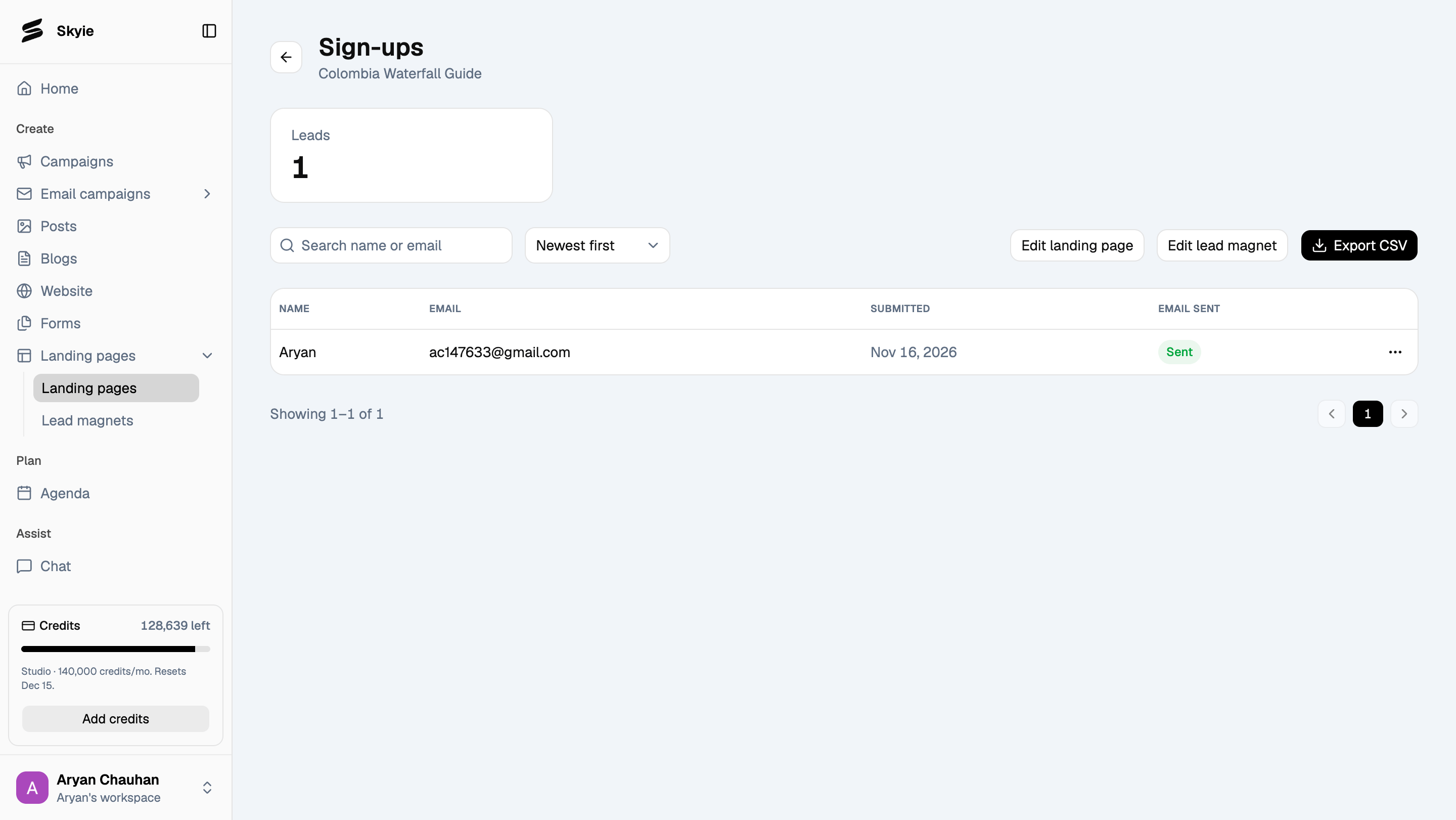
Browse your landing pages
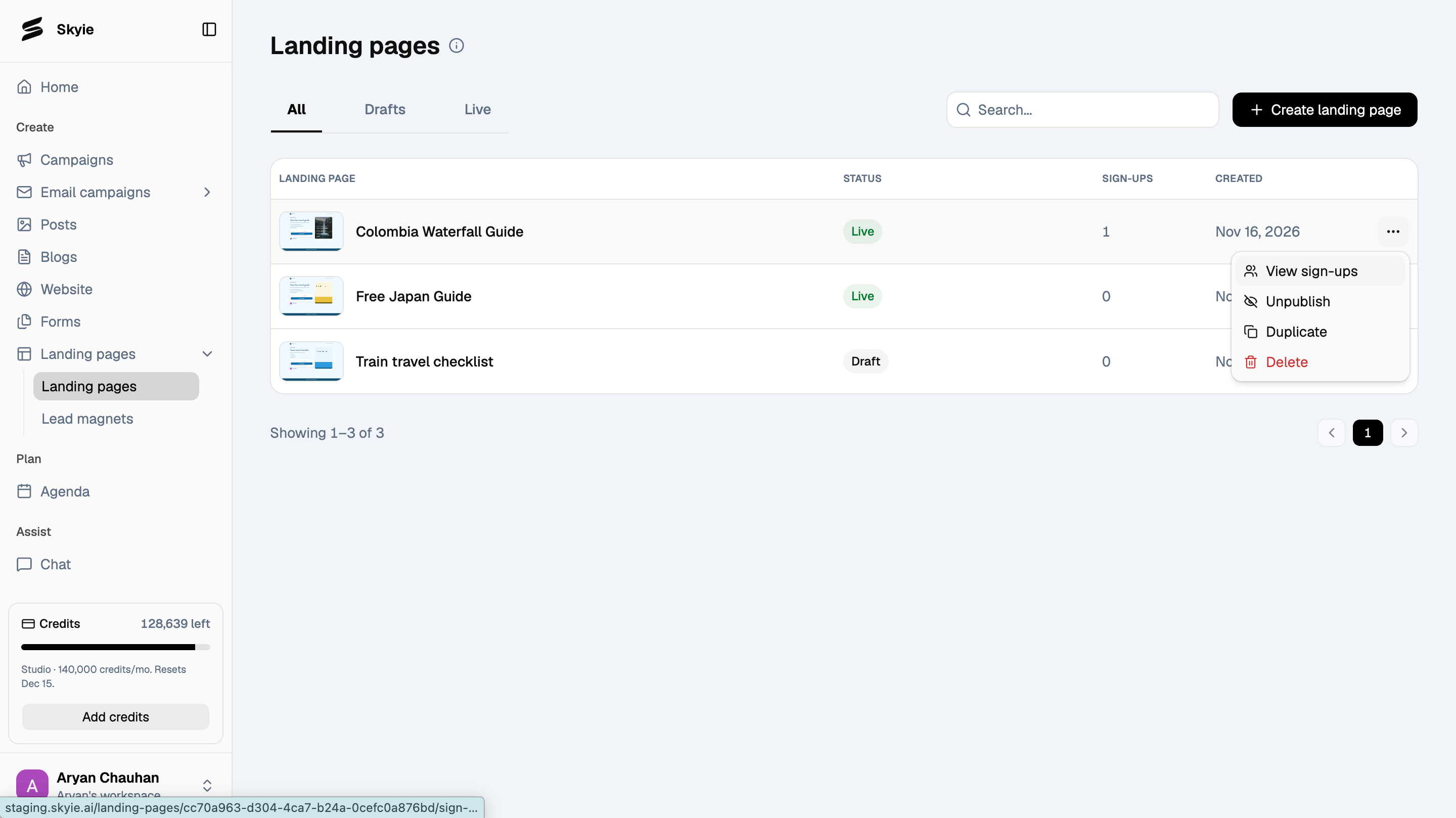
Go to Landing pages in the left sidebar to view your pages under three tabs:- All: all your landing pages.
- Drafts: pages that haven’t been published.
- Live: published pages currently accepting sign-ups.
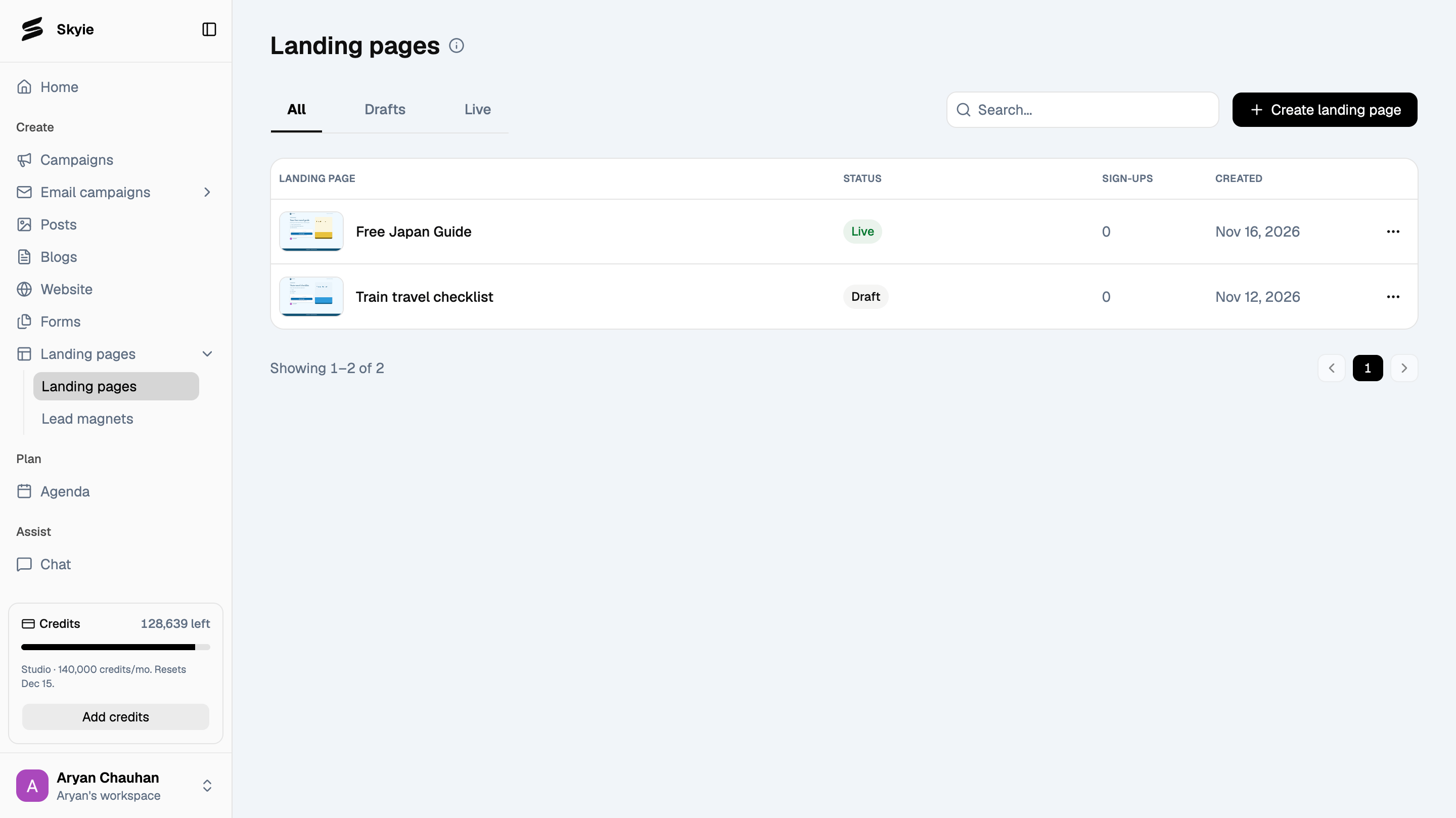
Build your landing page
The builder shows a live Preview on the left and an Edit landing page panel on the right. Toggle Use style kit to apply your saved brand colors and fonts, then fill in Content: your label, headline, subheadline, benefit bullets, title, and bio. The preview updates as you make changes.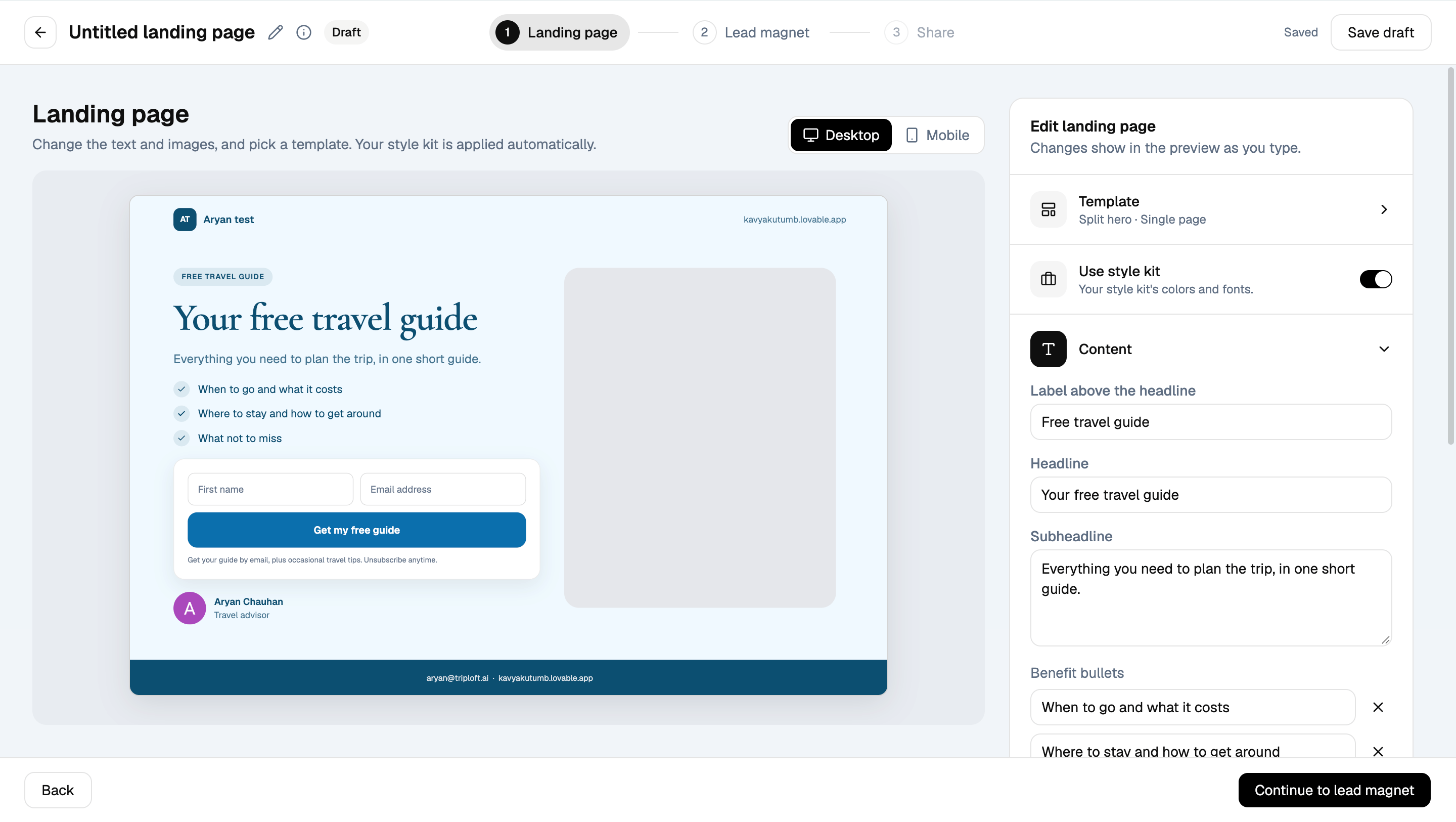
Choose a template
Click Template to pick a layout: a single-page option like Split hero, Full-bleed cover, Centered minimal, or Long form, or a two-page option like Landing + thank-you or Landing + guide preview.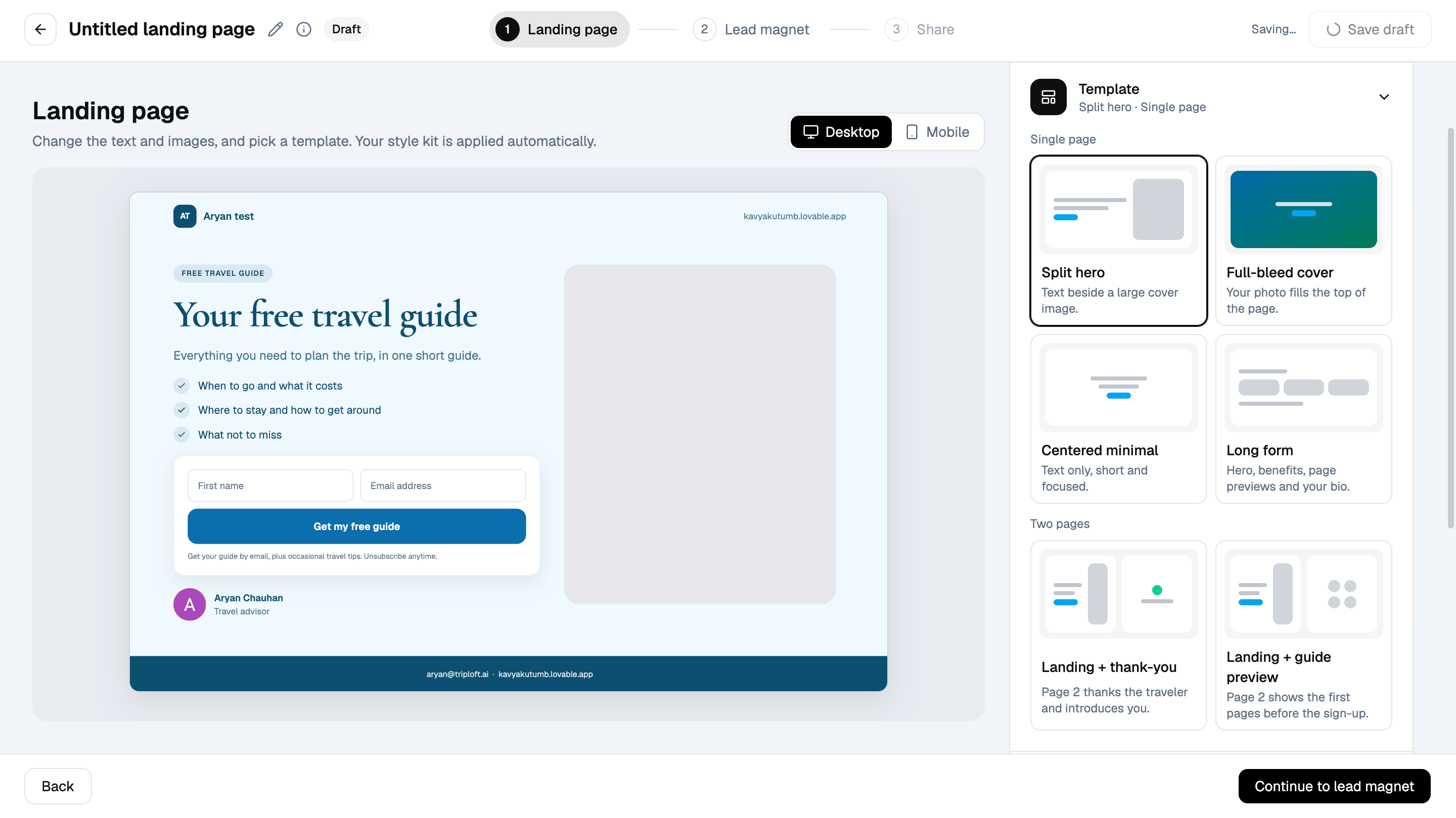
Add your images
Under Images, upload a Hero image and an Advisor photo. These appear in the live preview as soon as you upload them.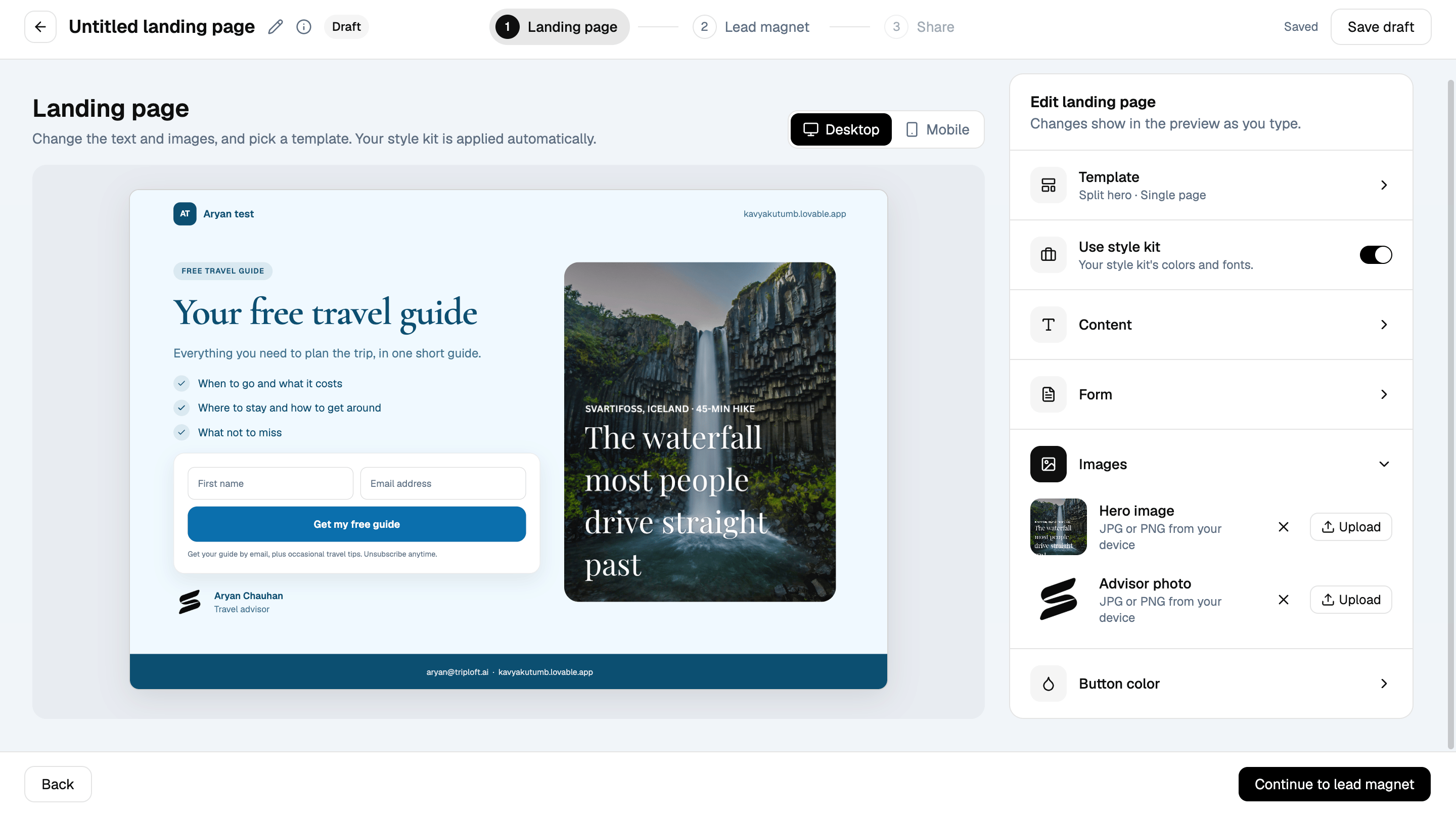
Customize the form
Under Form, customize the submit button text, add fields beyond the required email address, and edit the consent line shown under the submit button.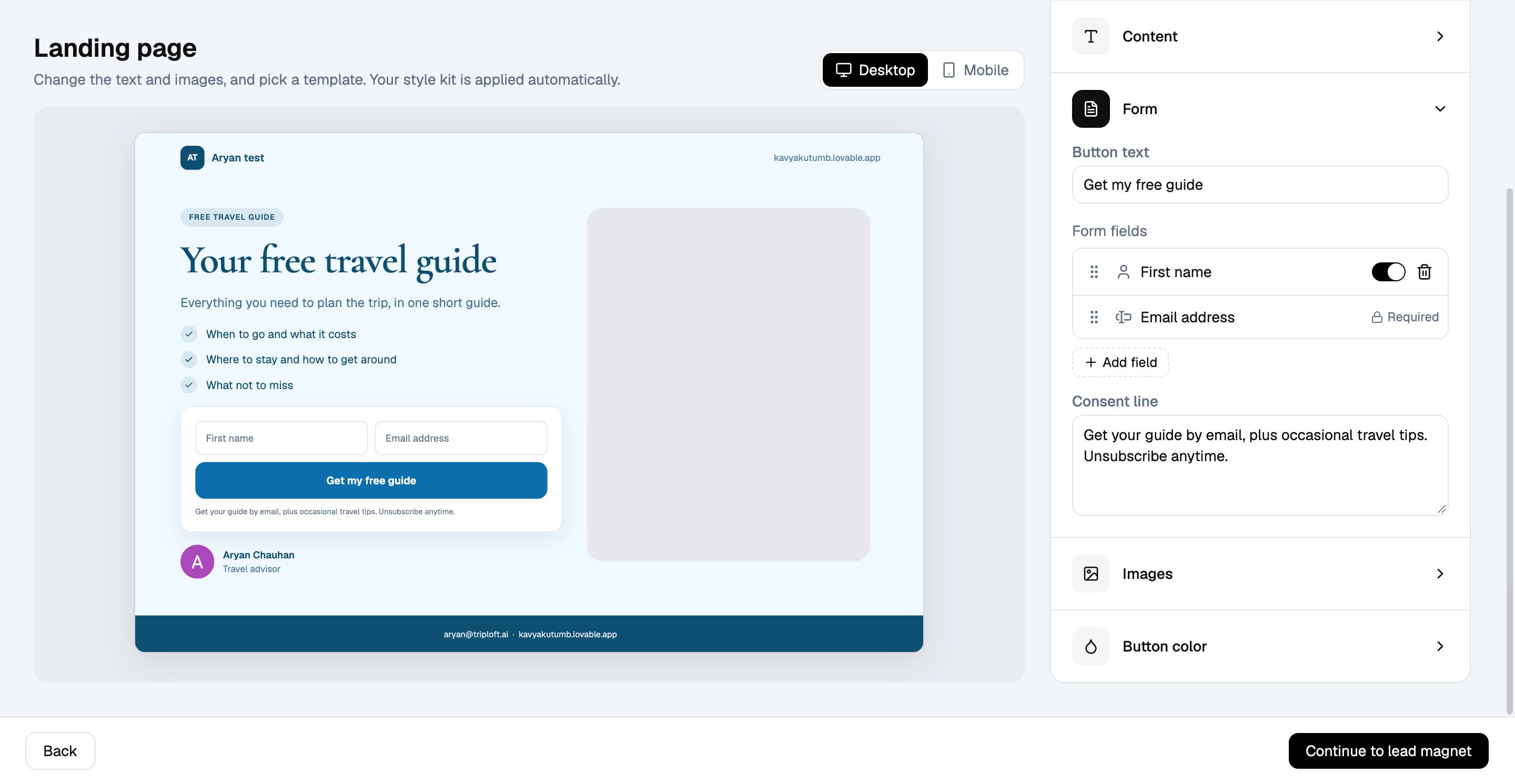
Add your lead magnet
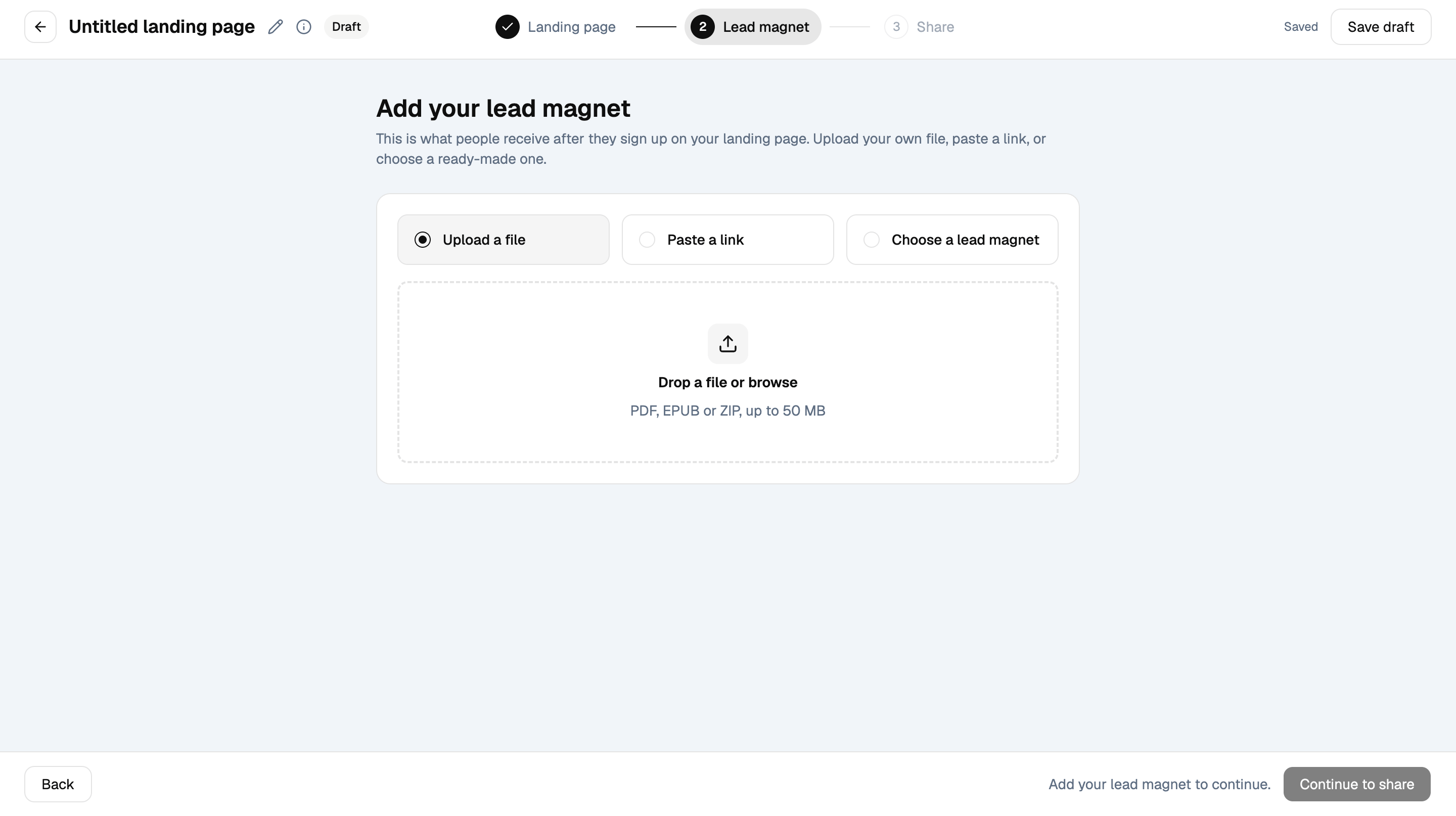
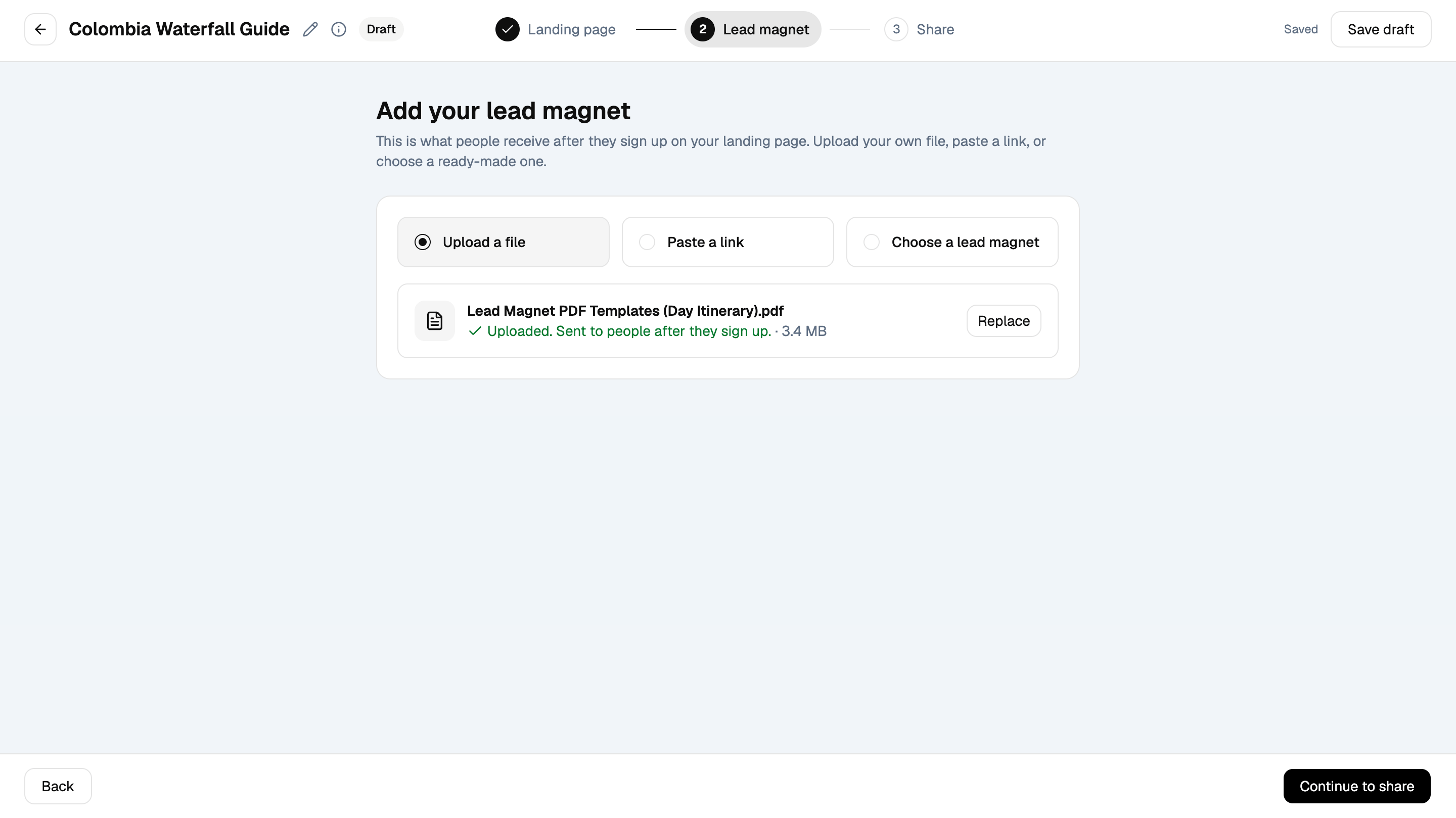
A lead magnet is the free resource visitors receive after signing up, such as a travel guide or packing checklist. Choose one of three options:- Upload a file: add a PDF, EPUB, or ZIP file, up to 50 MB.
- Paste a link: use an existing resource.
- Choose a lead magnet: select one you’ve used before.
Configure sharing options
Choose what happens after a visitor submits your form. Show a success message: display a custom confirmation message with a download button on the page.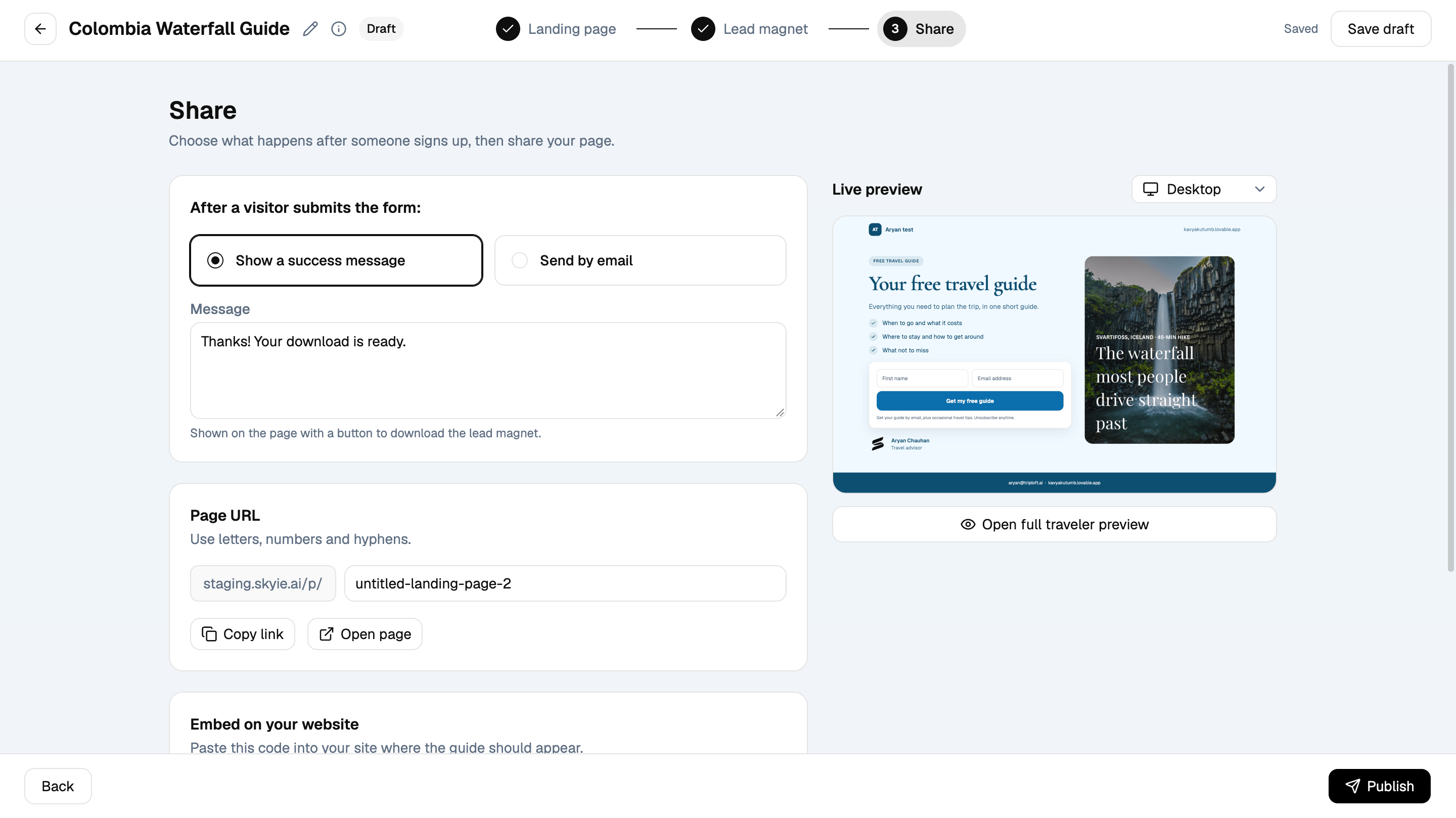
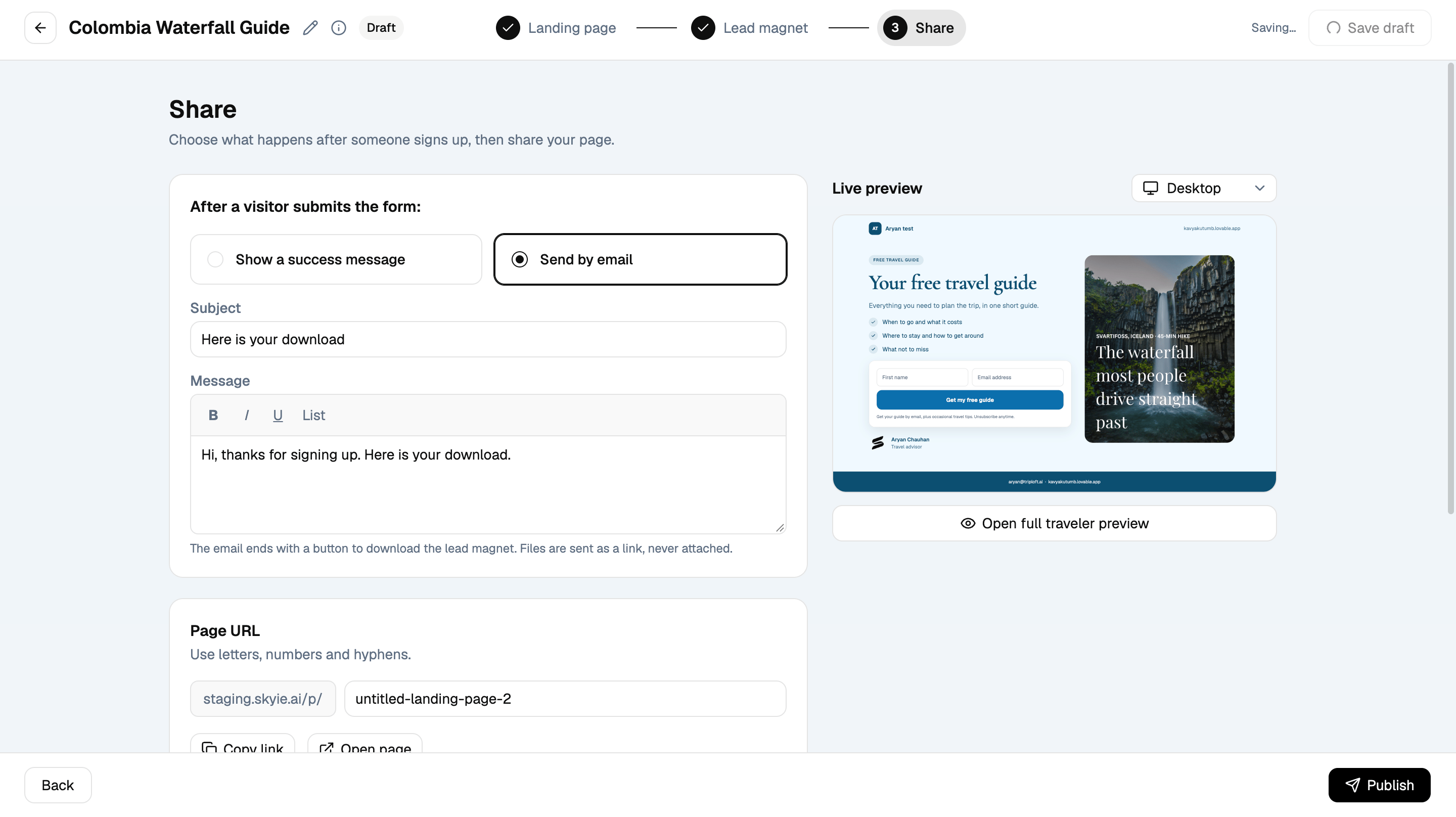
Set your page URL and embed options
Under Page URL, customize your landing page address using letters, numbers, and hyphens. You can copy the link or open the page. Under Embed on your website, choose A button that opens it to add a button that opens your landing page, or The page itself, inline to display the landing page directly on your website. Copy the generated Embed code and add it to your website.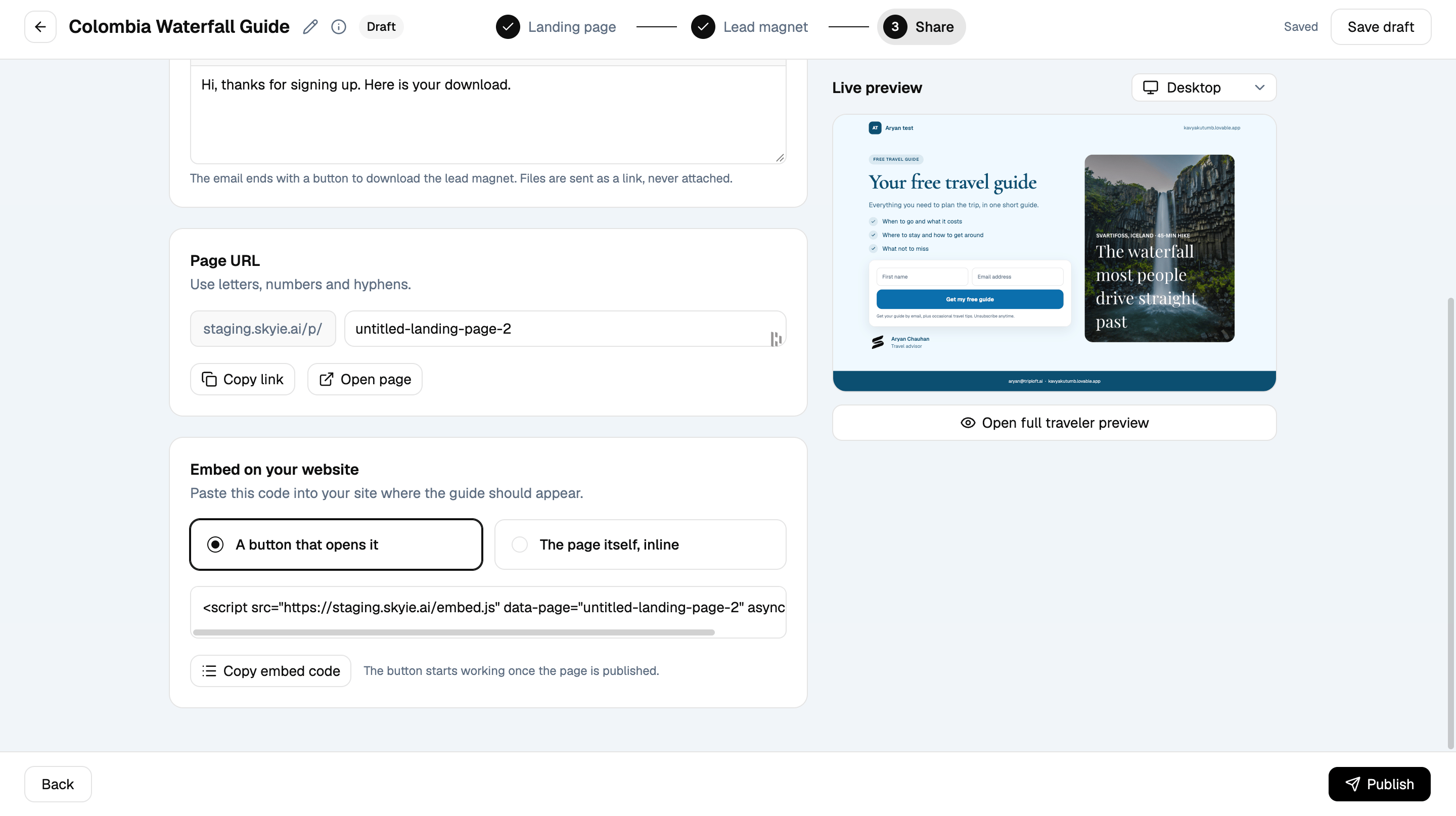
After you publish
Once your landing page is live, you can Copy link, Copy embed code, Download PDF, View page, or Go to Sign-ups.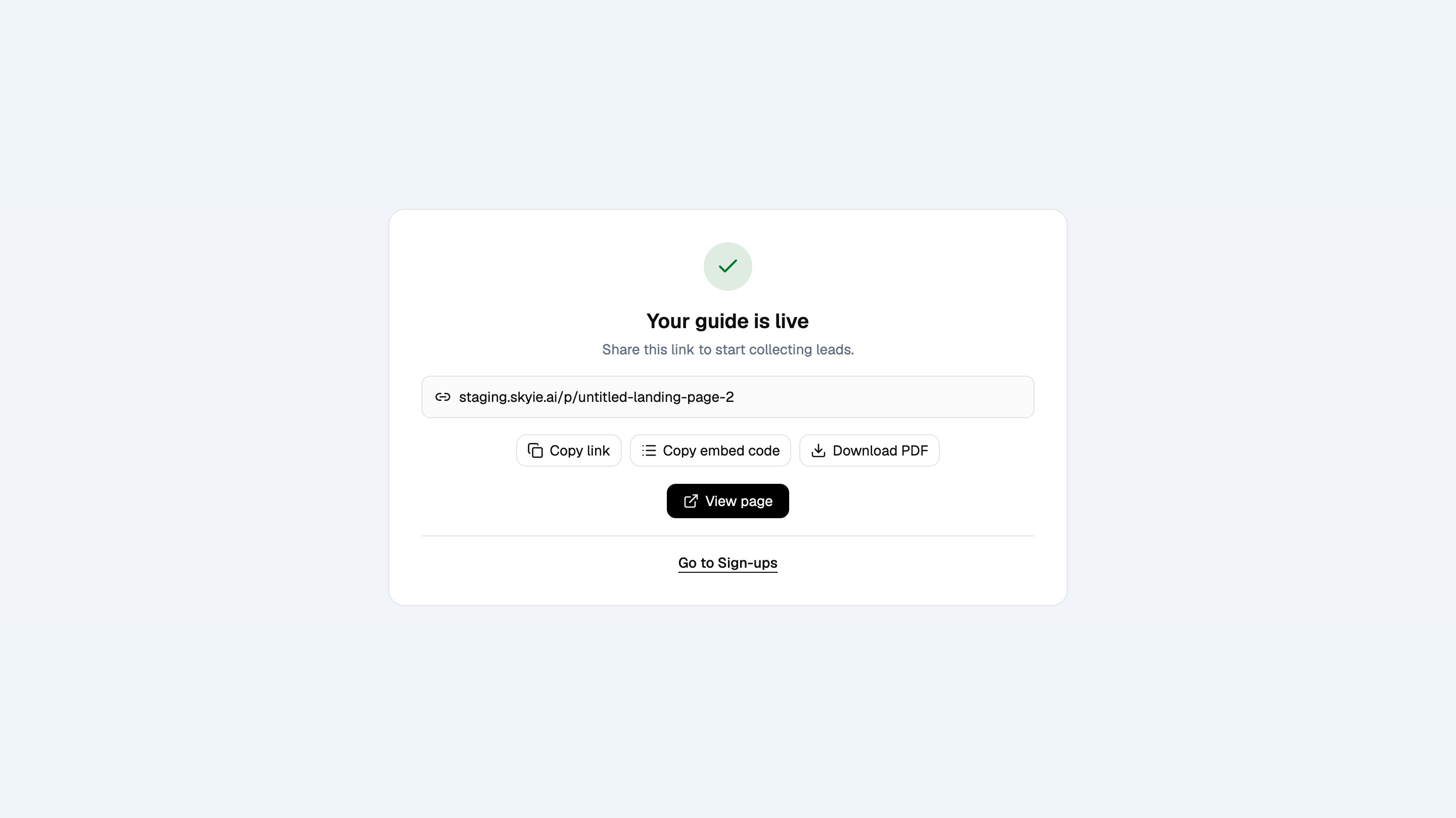
Review your sign-ups
Open a landing page’s Sign-ups to view its total leads and individual submissions. You can:- Search by name or email.
- Sort by newest first.
- Return to Edit landing page or Edit lead magnet.
- Export CSV to download your sign-up list.