Start a conversation
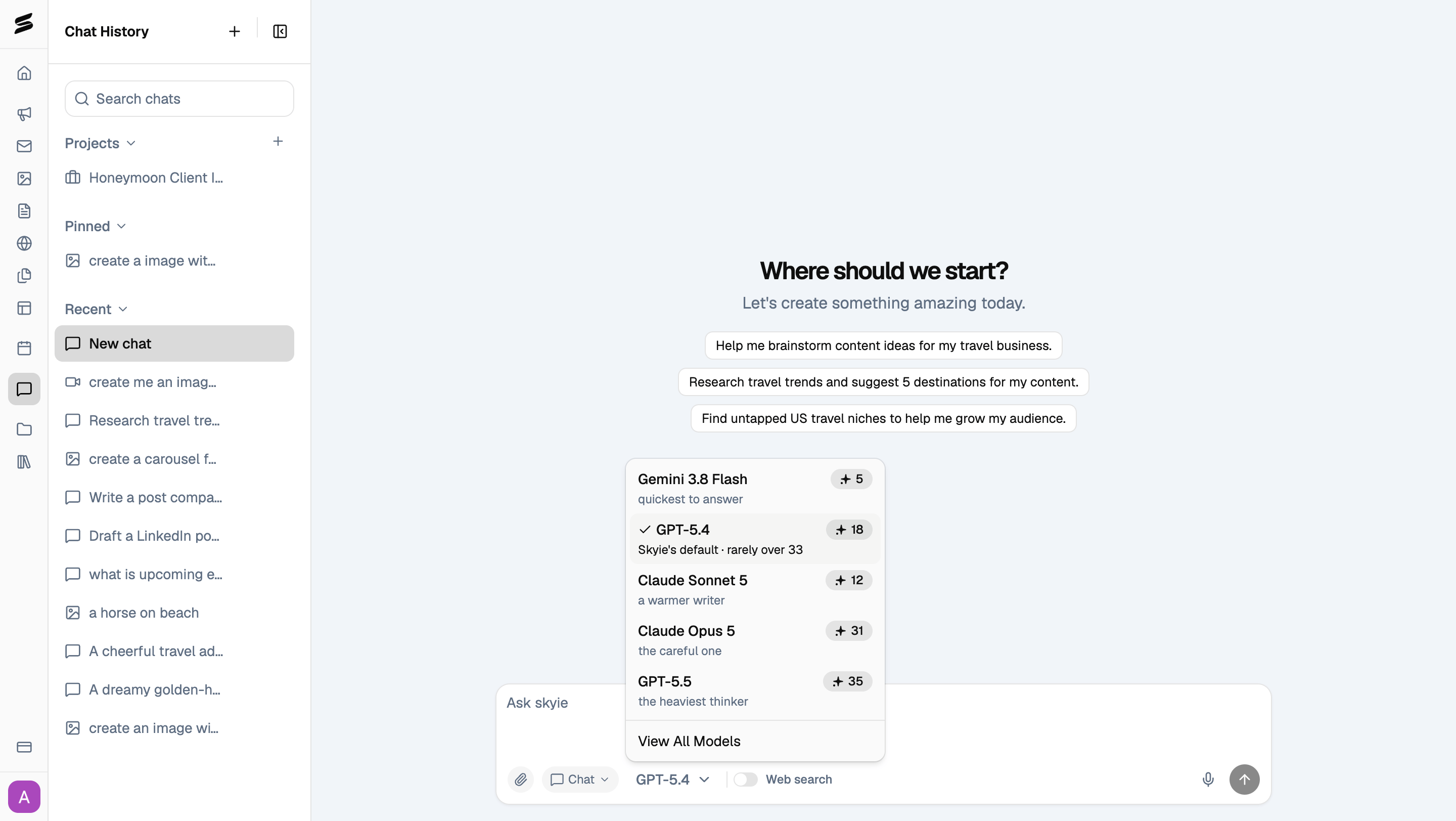
Go to Chat in the left sidebar. Type your own question, or click one of the suggested prompts to get started. The input bar lets you choose what you’re creating, which model to use, and whether to turn on Web search.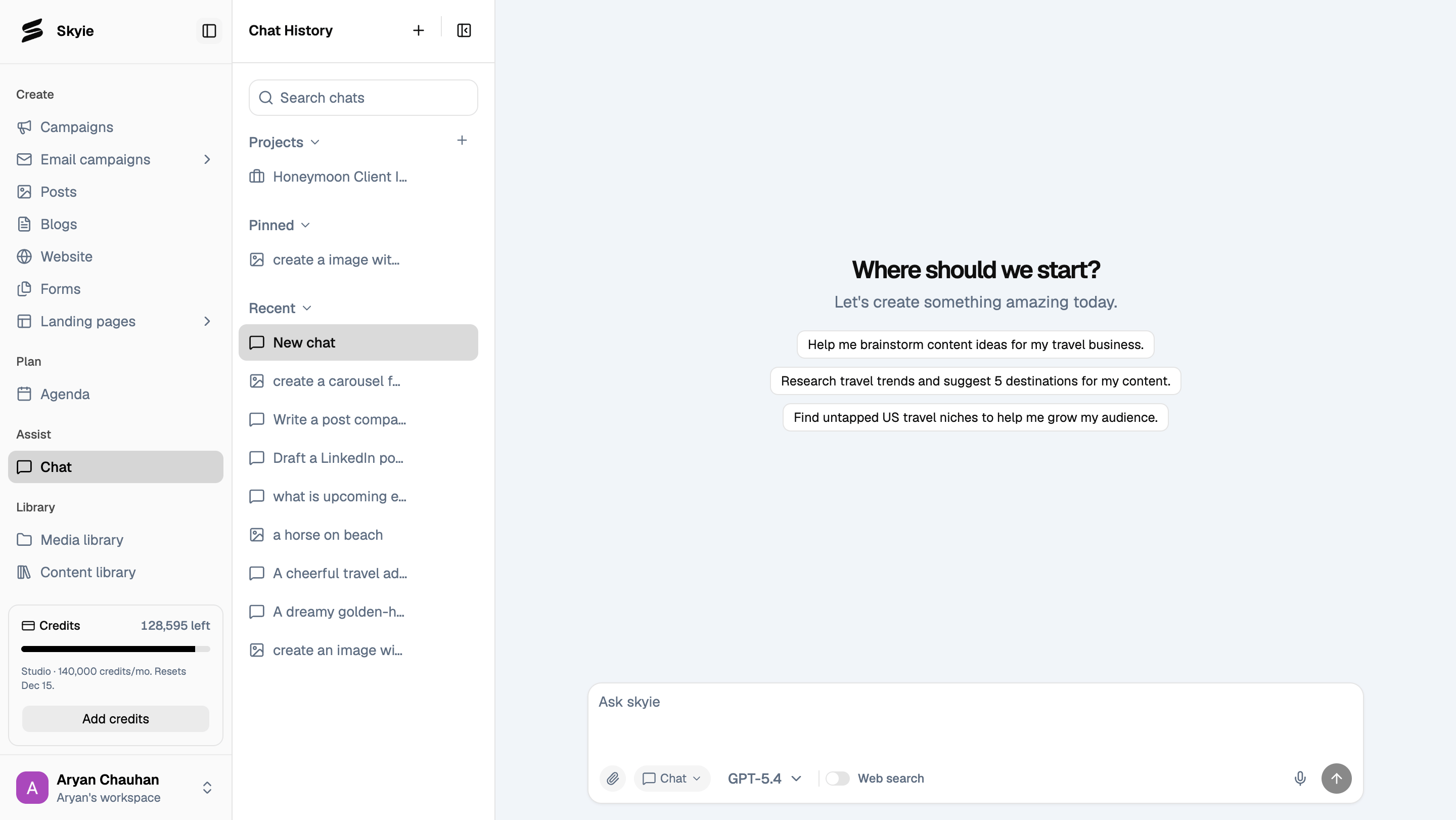
Choose what you’re creating
Click the mode dropdown on the left of the input bar to switch between Chat, Image, and Video. Each mode changes what the input bar asks for and which models are available.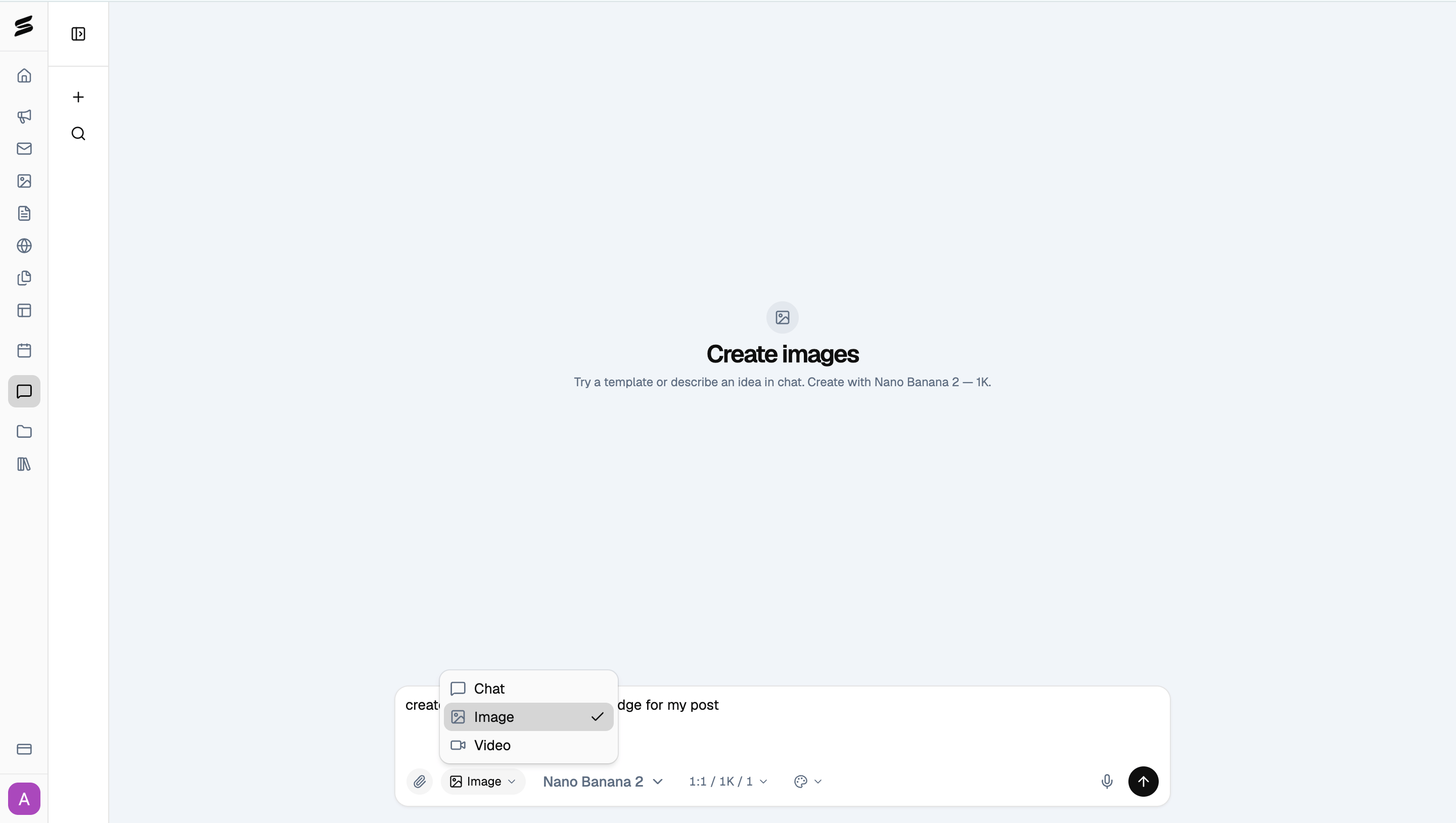
Chat
Ask anything: brainstorm content ideas, research destinations, or ask Skyie to build something like a posting table, which you can copy, download, or view full screen.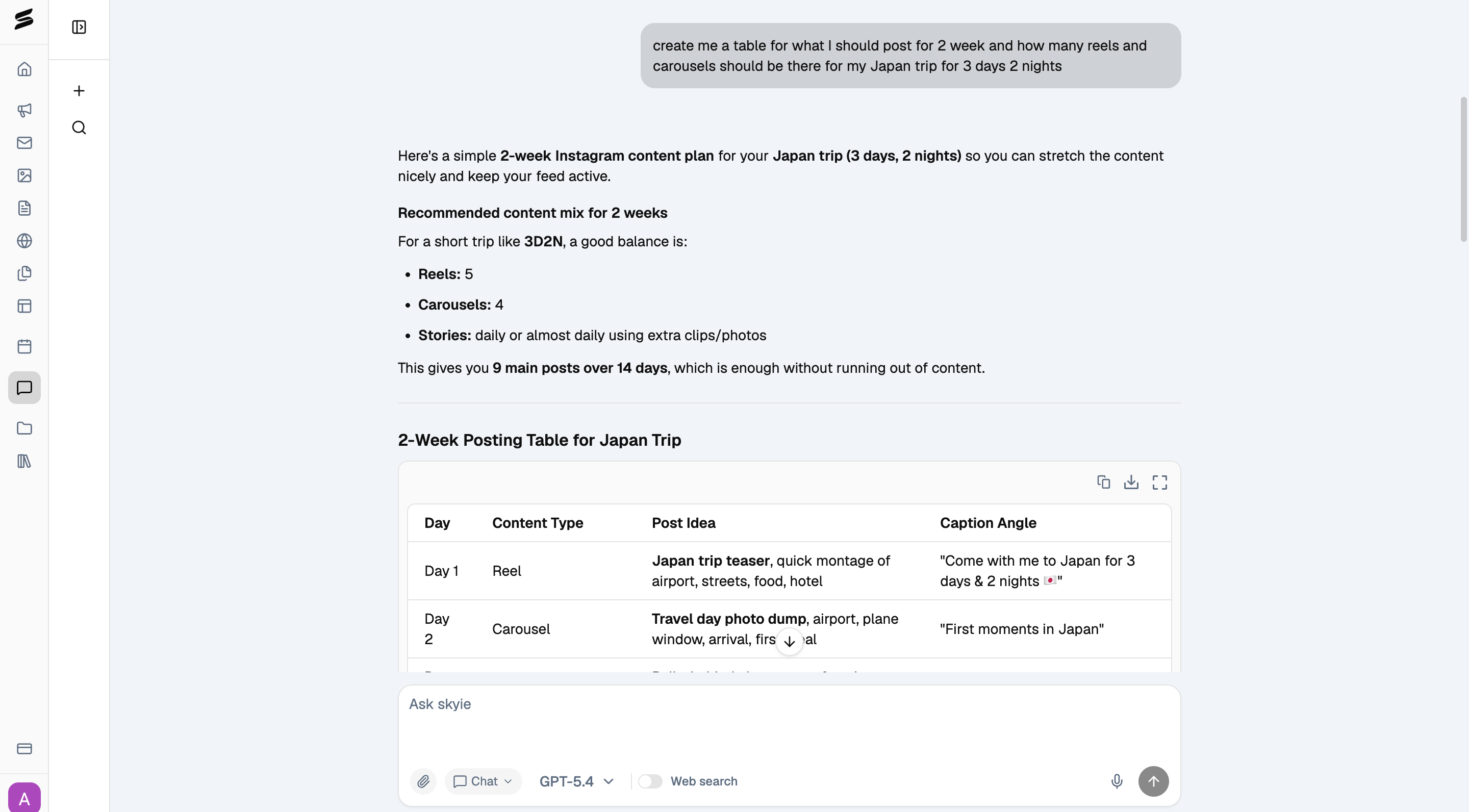
Generate images
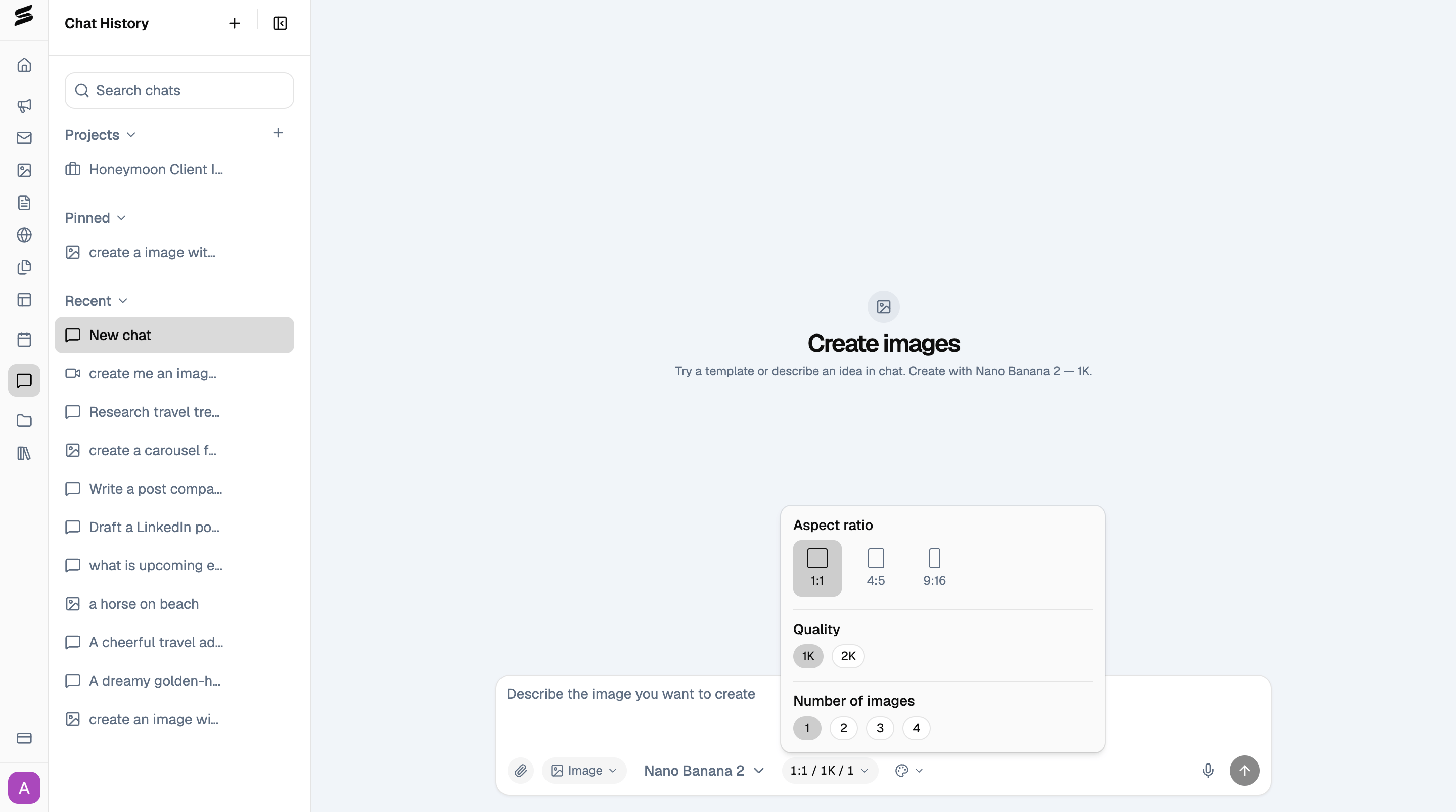
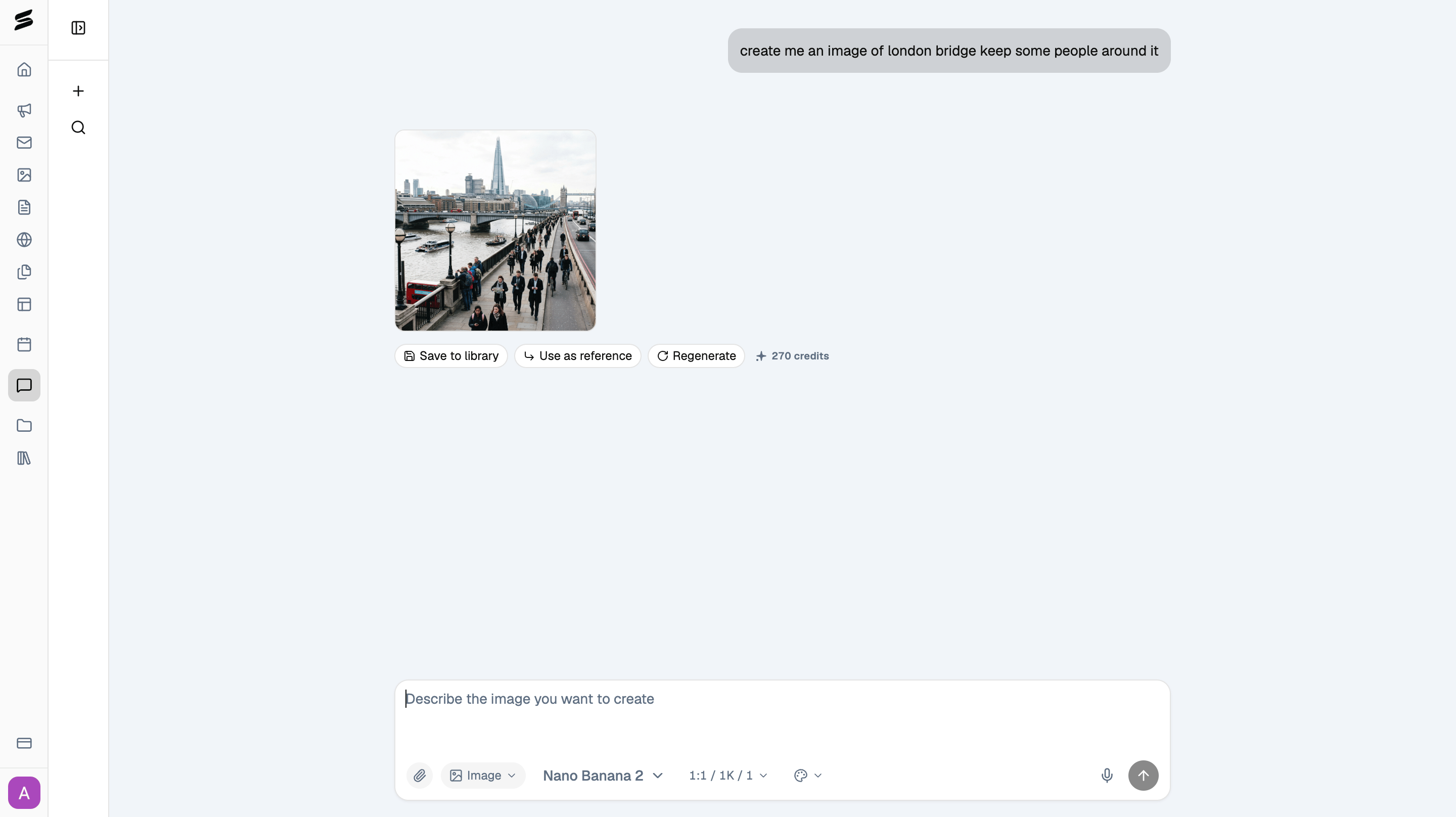
Describe the image you want. Pick a model from Everyday (lower credit cost, good for everyday content) or Best (higher quality, more credits).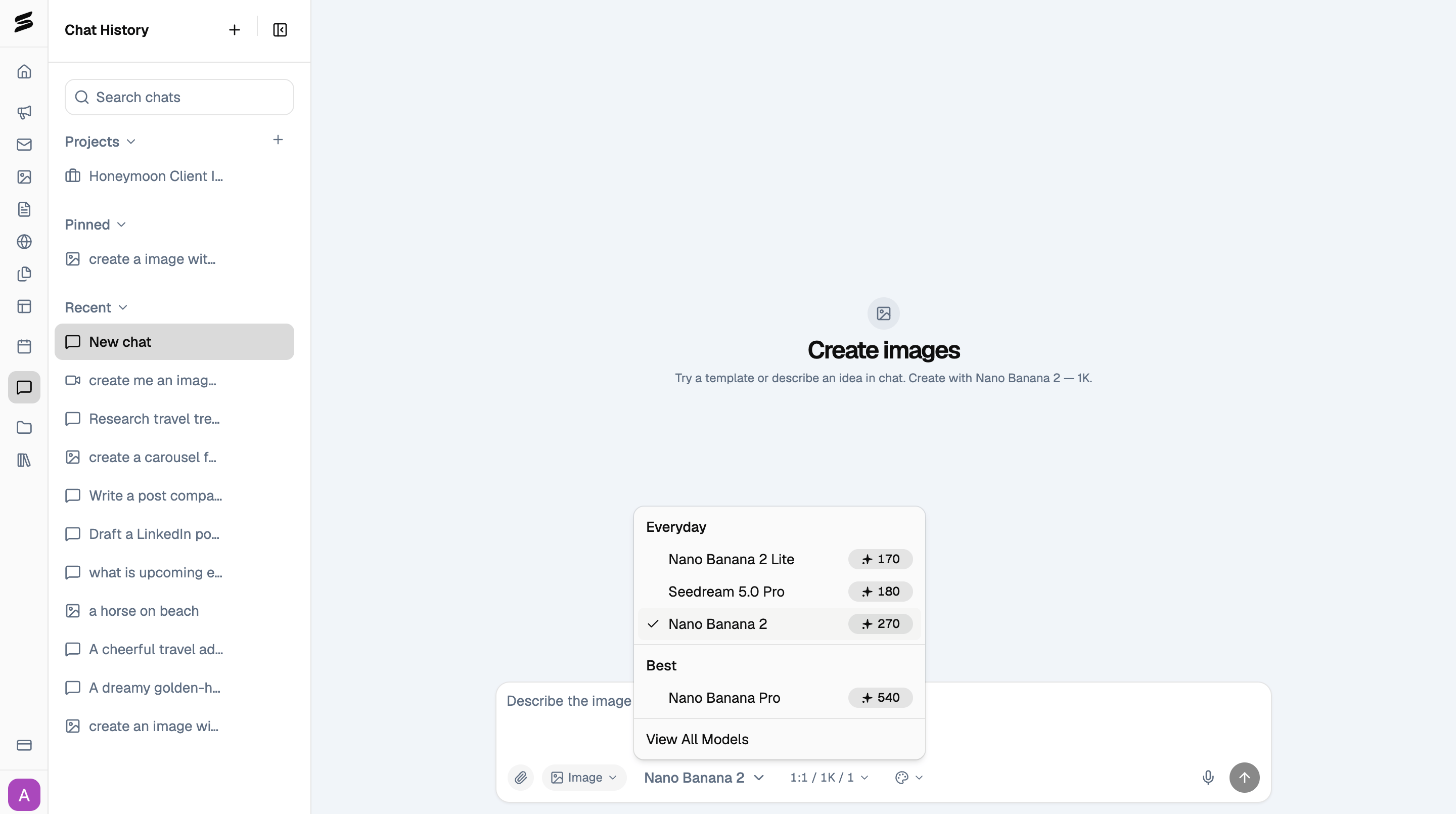
Generate videos
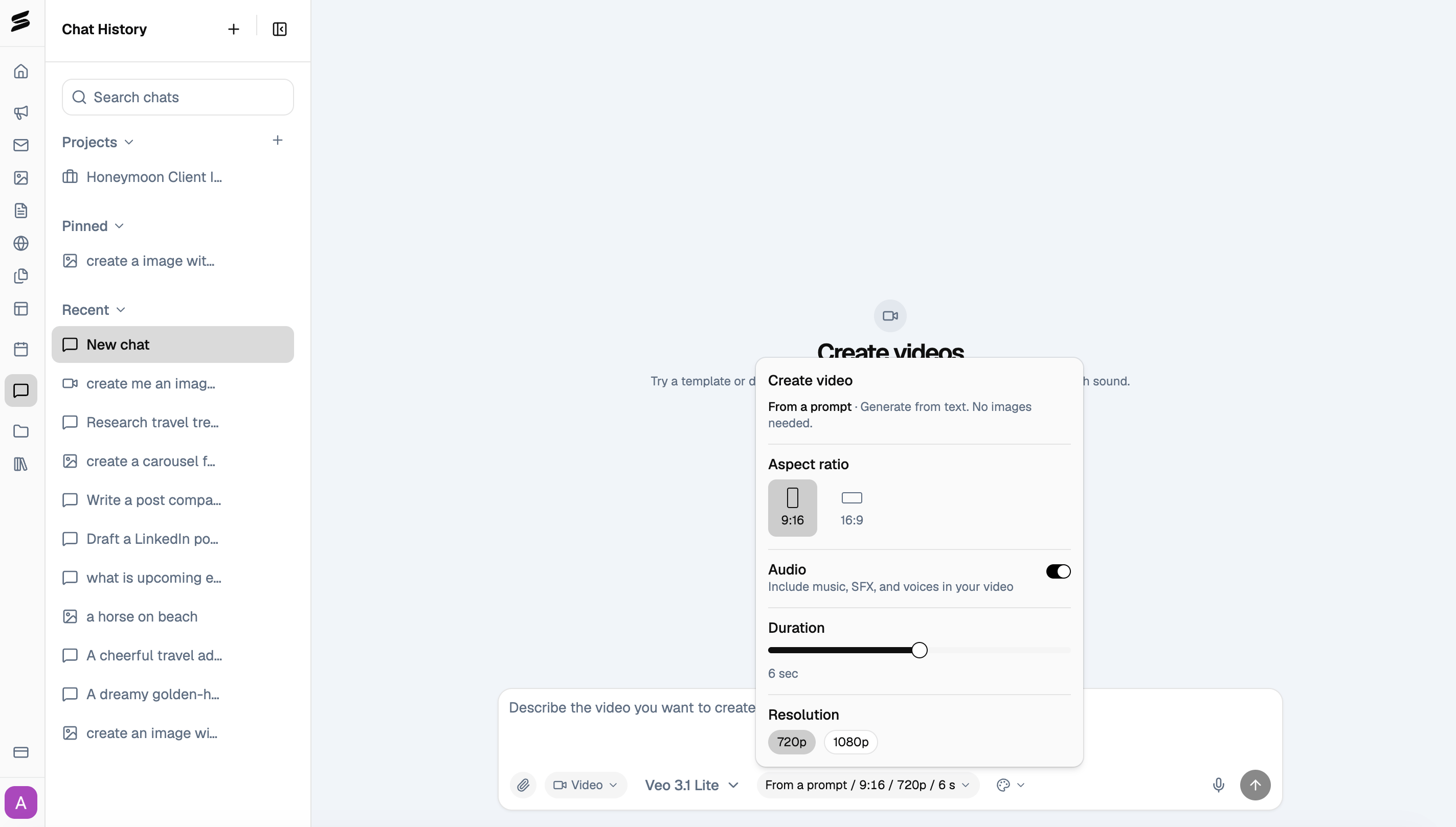
Pick Veo 3.1 Lite or Veo 3.1 Fast, depending on how much quality you need versus credits.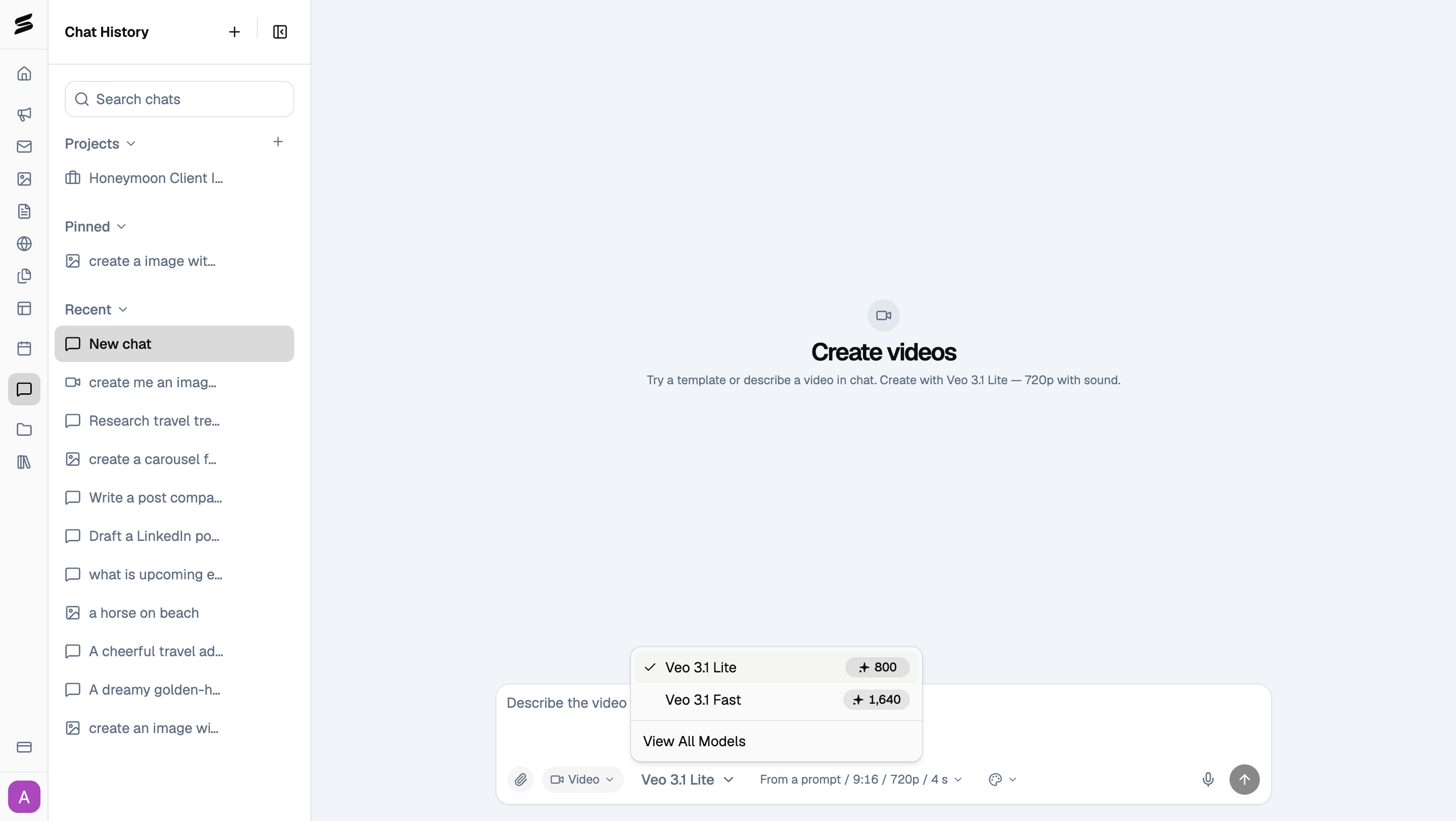
Keep asking follow-ups
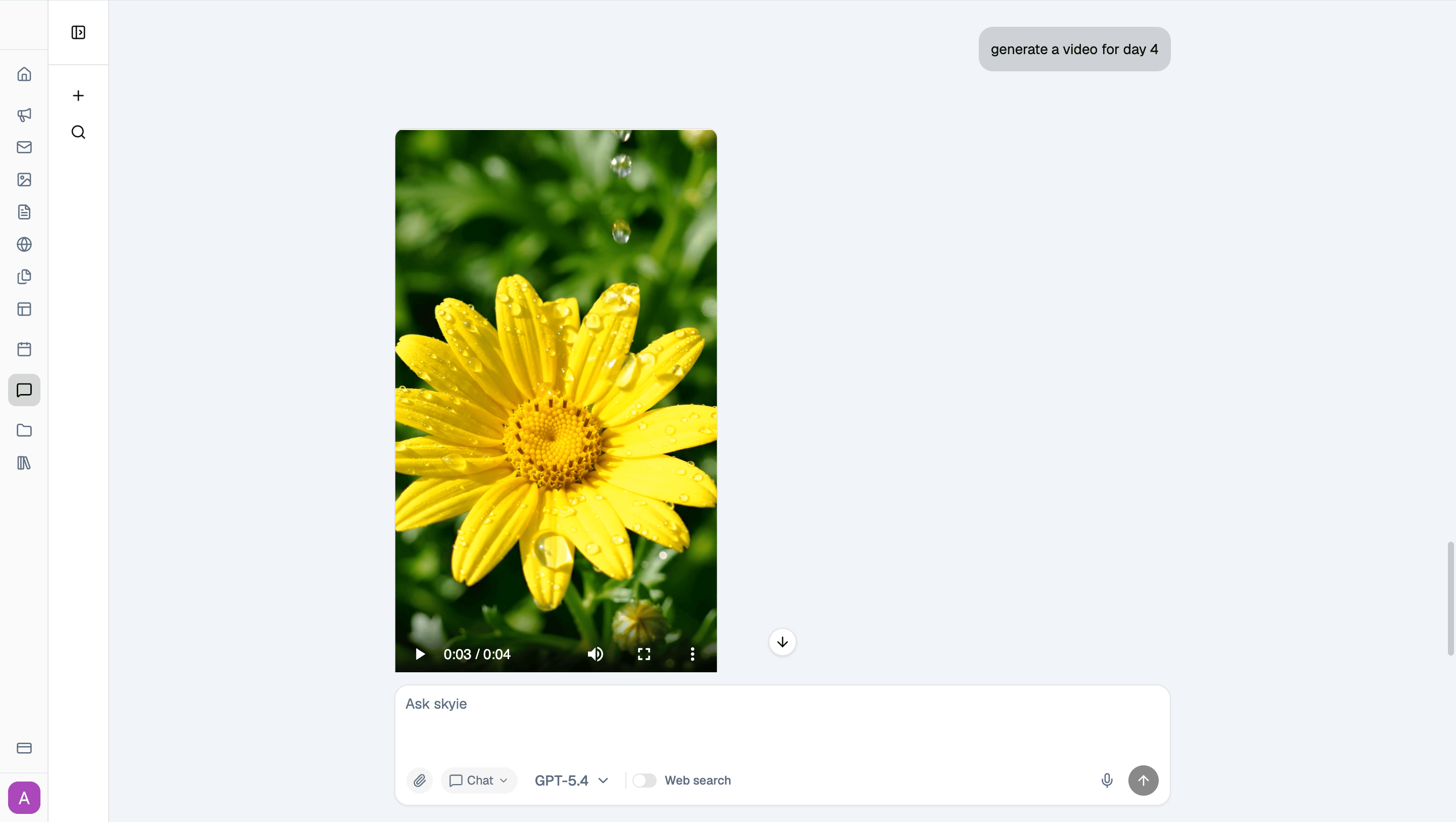
Skyie remembers what you’ve already discussed in the same chat. For example, after asking for a 2-week posting table, you can switch to Video mode and ask it to generate a video for one specific day from that table, without repeating any context.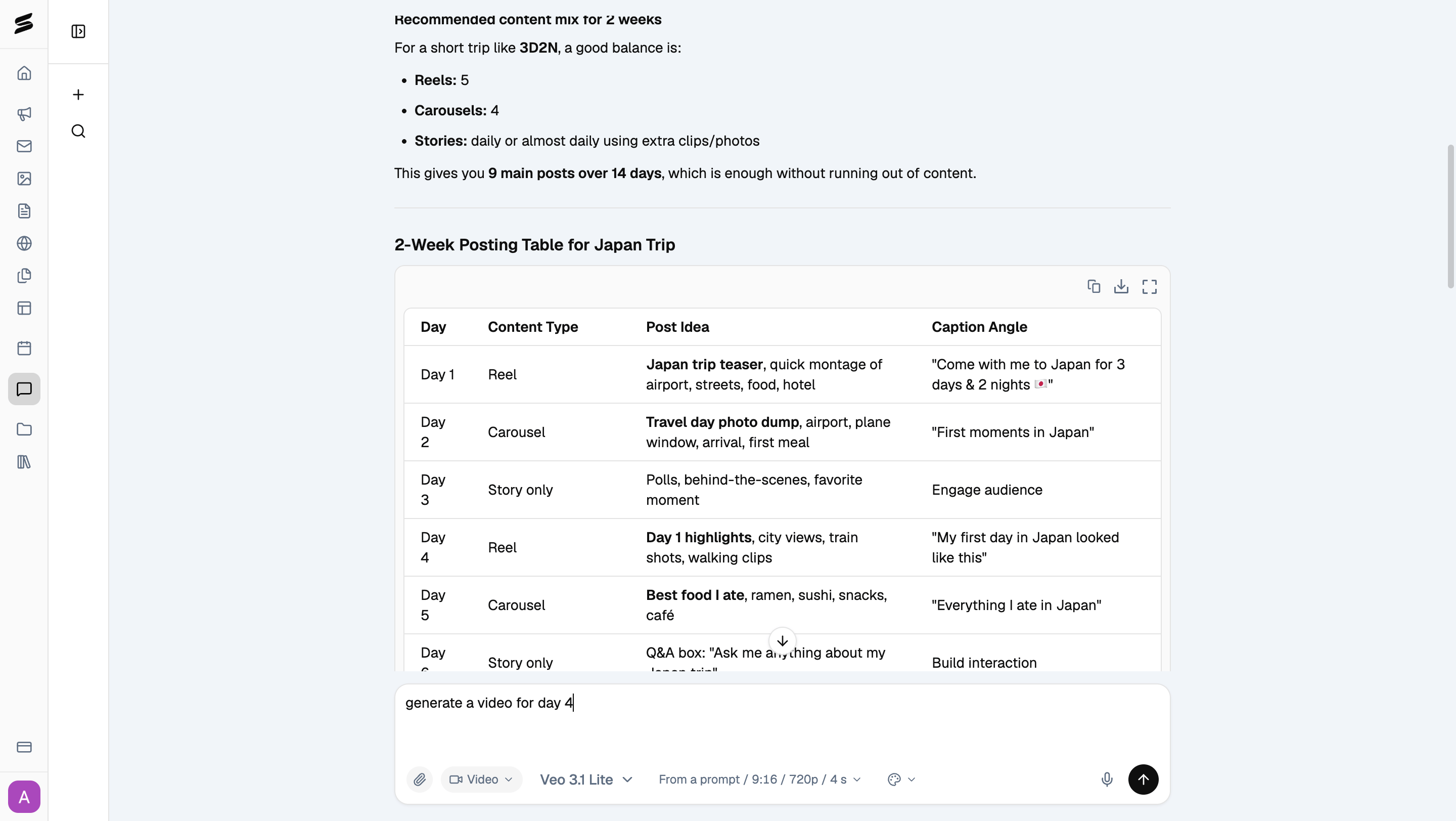
Organize your chats
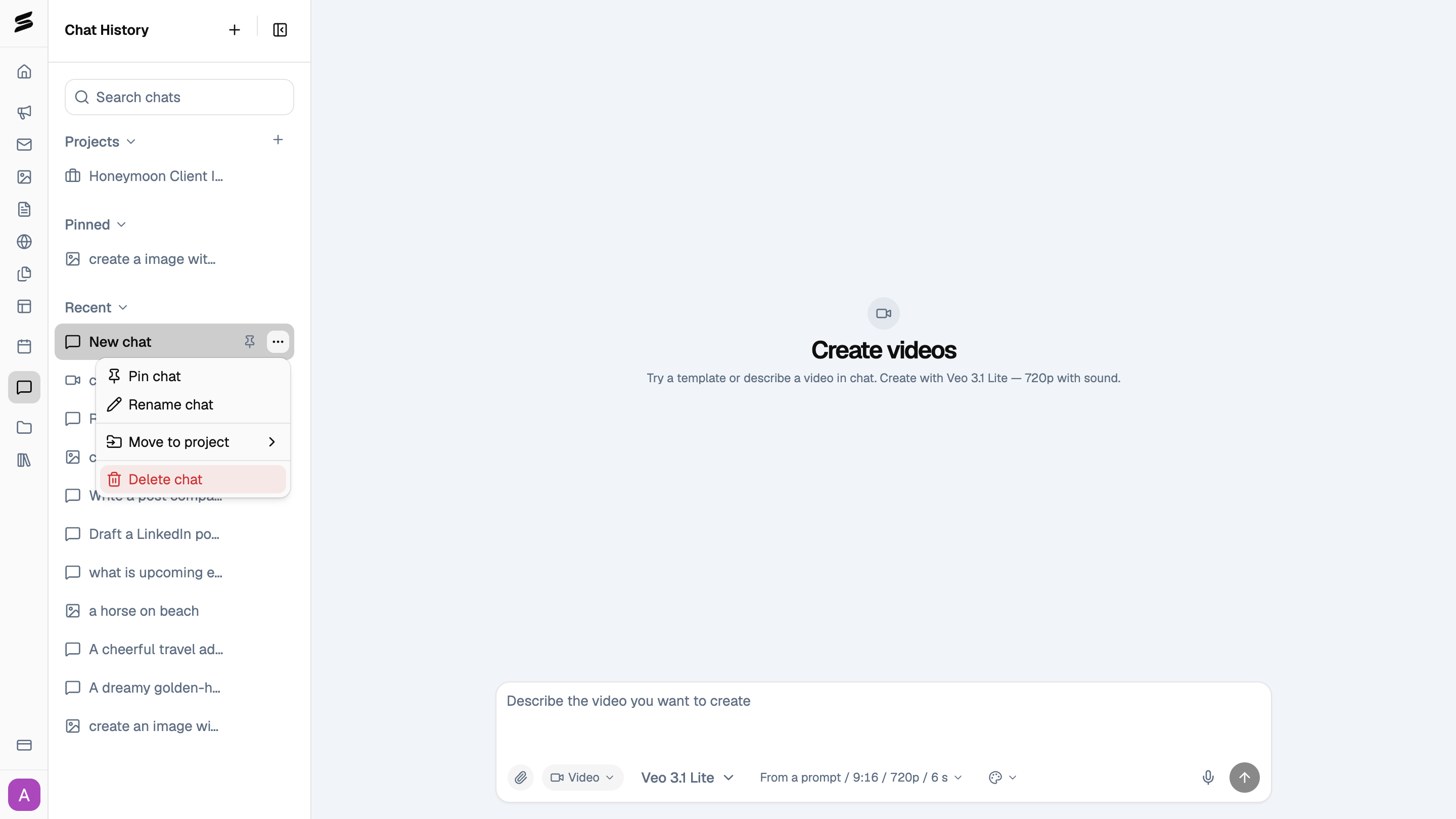
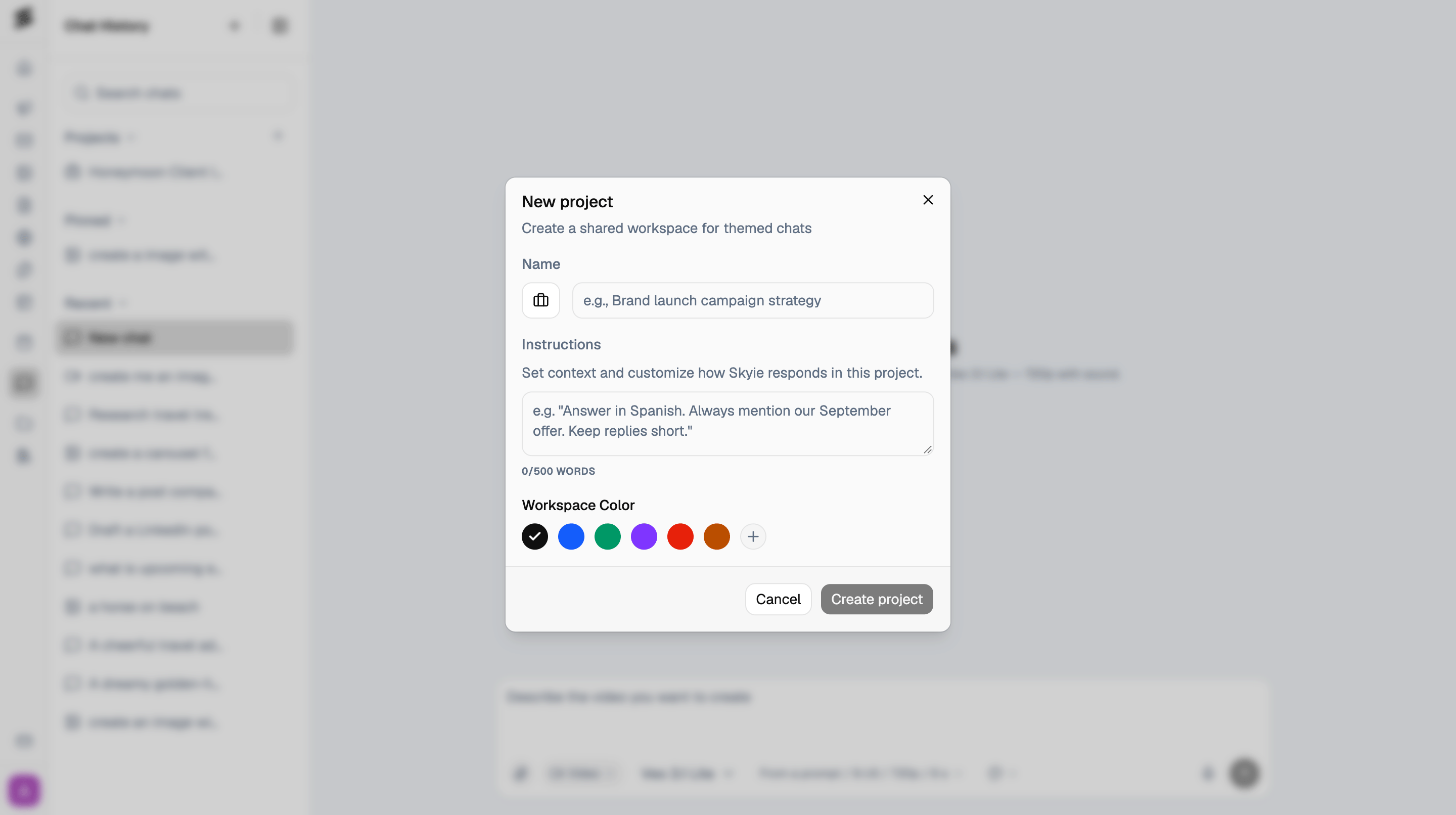
The Chat History panel on the left groups your conversations into Projects, Pinned, and Recent, with search at the top. Click a chat’s ••• menu to Pin chat, Rename chat, Move to project, or Delete chat.