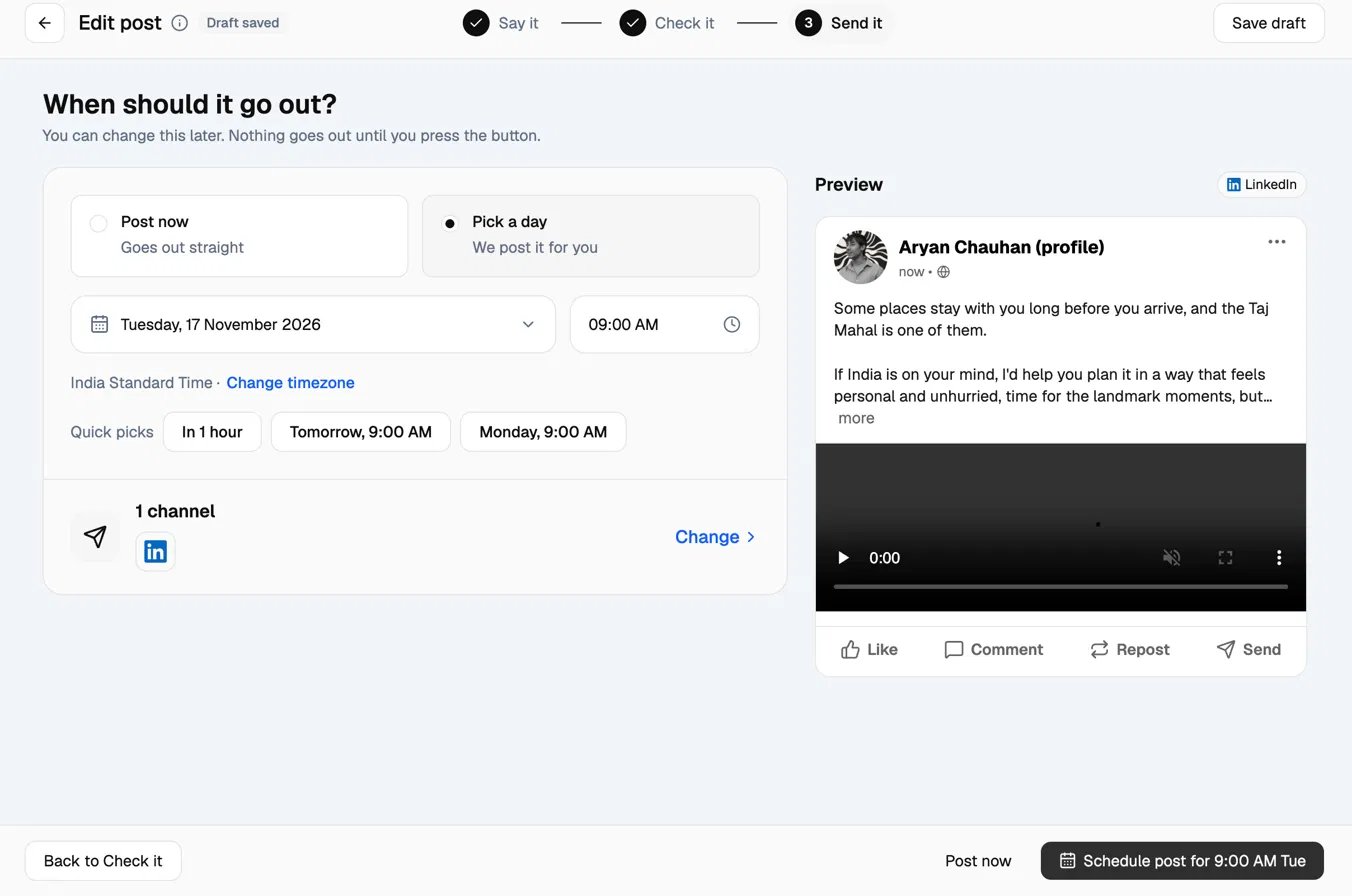
Start a new post
- Go to Posts in the left sidebar.
- Click New Post.
- Choose how you want to start:
- Create with AI: type a rough idea, for example “a tip about packing for a safari,” and Skyie writes the full caption for you, and generates a picture, carousel, or video to go with it depending on the format you pick in the next step.
- Write it yourself: opens a blank post with nothing generated. You type the caption yourself and add your own image if you want one. Since Skyie doesn’t generate anything, this option doesn’t use any credits.
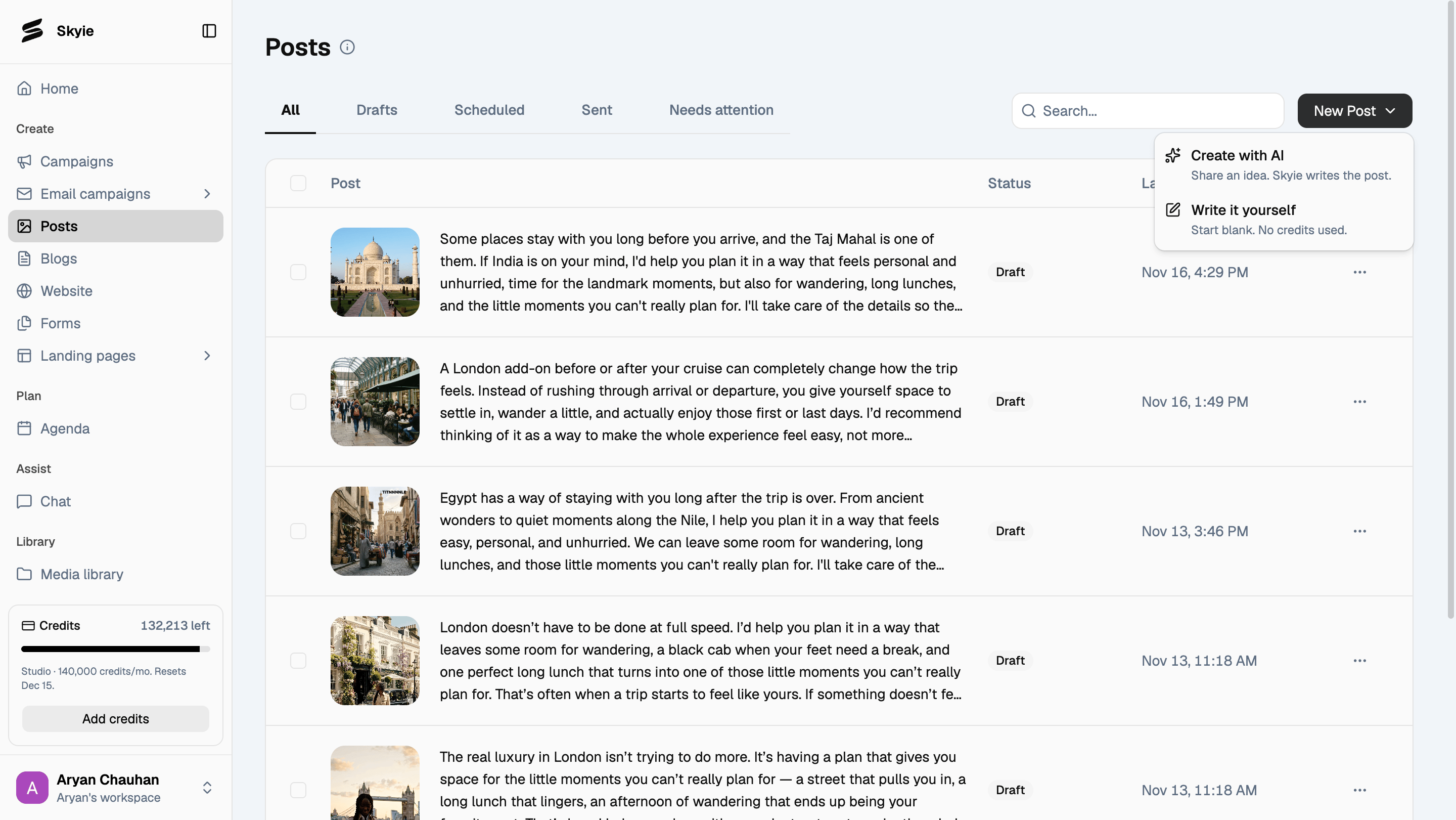
Writing it yourself costs no credits. Credits are only spent when Skyie generates a caption, picture, carousel, or video for you.
Say it
Describe the post you want in a sentence or two. Skyie writes the caption and adds pictures to match.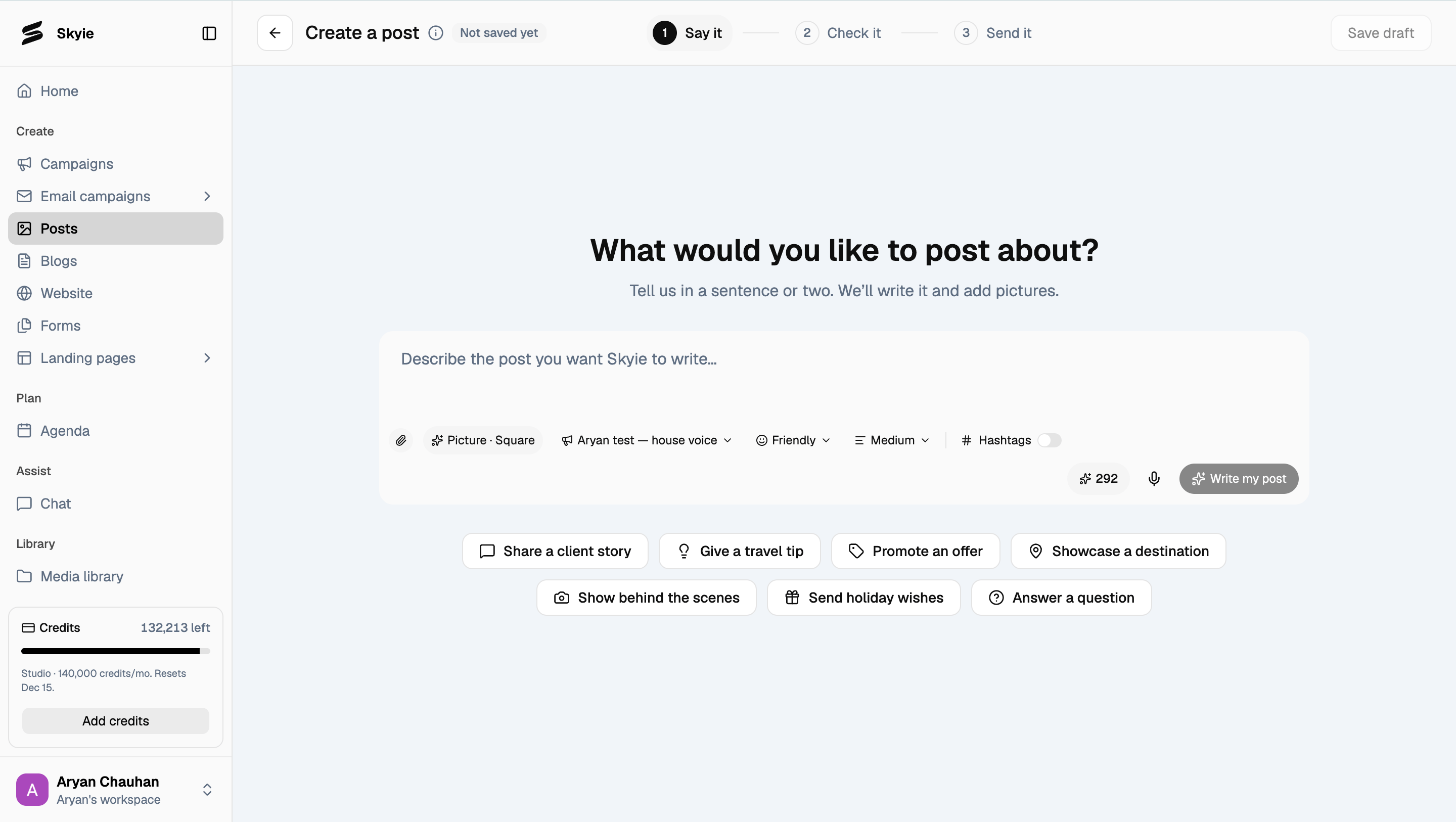
- Format: Picture, Carousel, Video, or Text only (see below).
- Voice: which of your saved house voices to write in.
- Tone: for example, Friendly.
- Length: Short, Medium, or Long.
- Hashtags: toggle on to have Skyie add them.
Choose a format
Click the format pill (for example Picture · Square) to open its settings. Picture makes one AI generated image to go with your caption.- Shape: Square (1:1), Portrait (4:5), or Tall (9:16), depending on where you’re posting.
- Models: Everyday (Nano Banana 2, 1K) is the standard option. Best (Nano Banana Pro) uses a stronger model for higher quality, at a higher credit cost per picture.
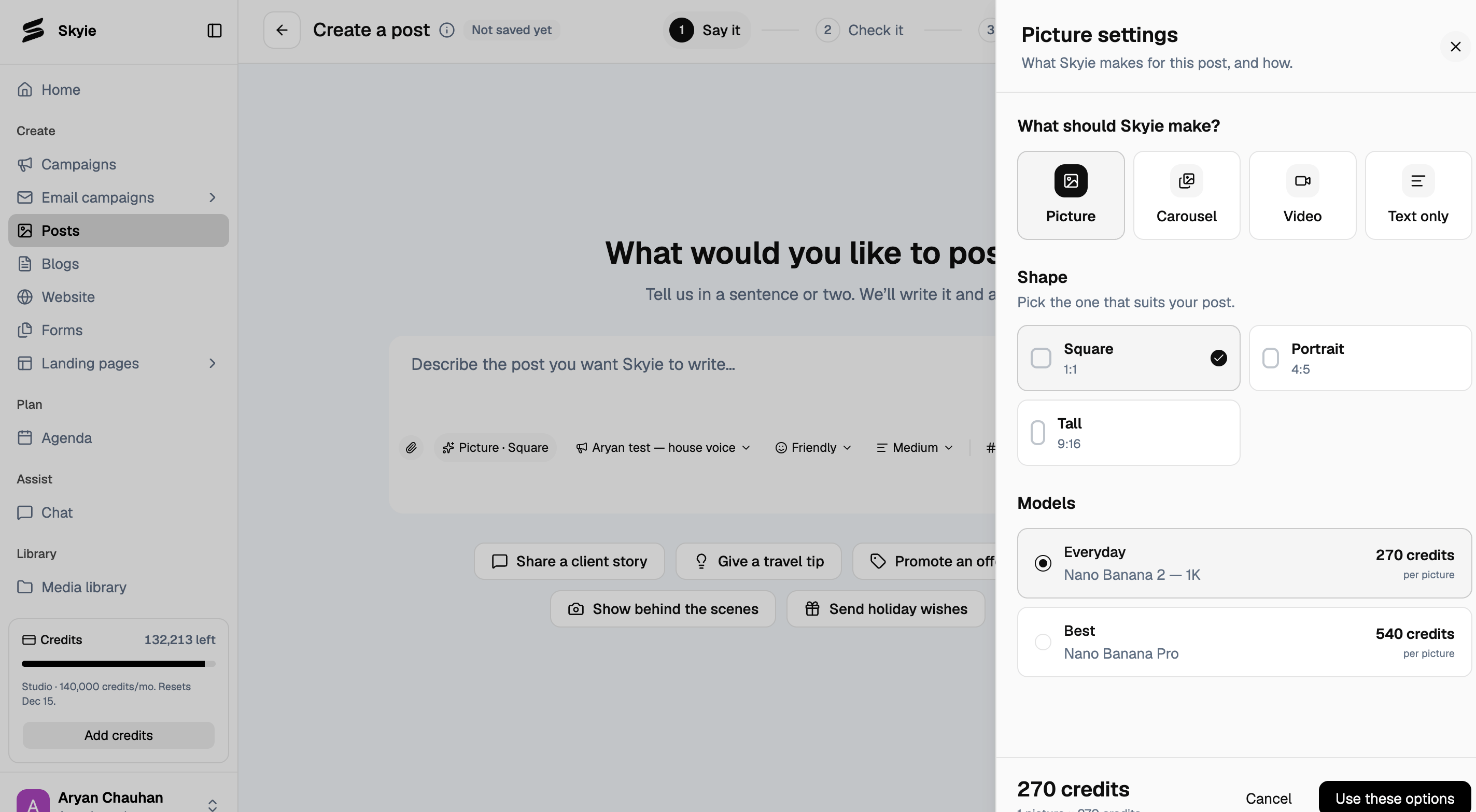
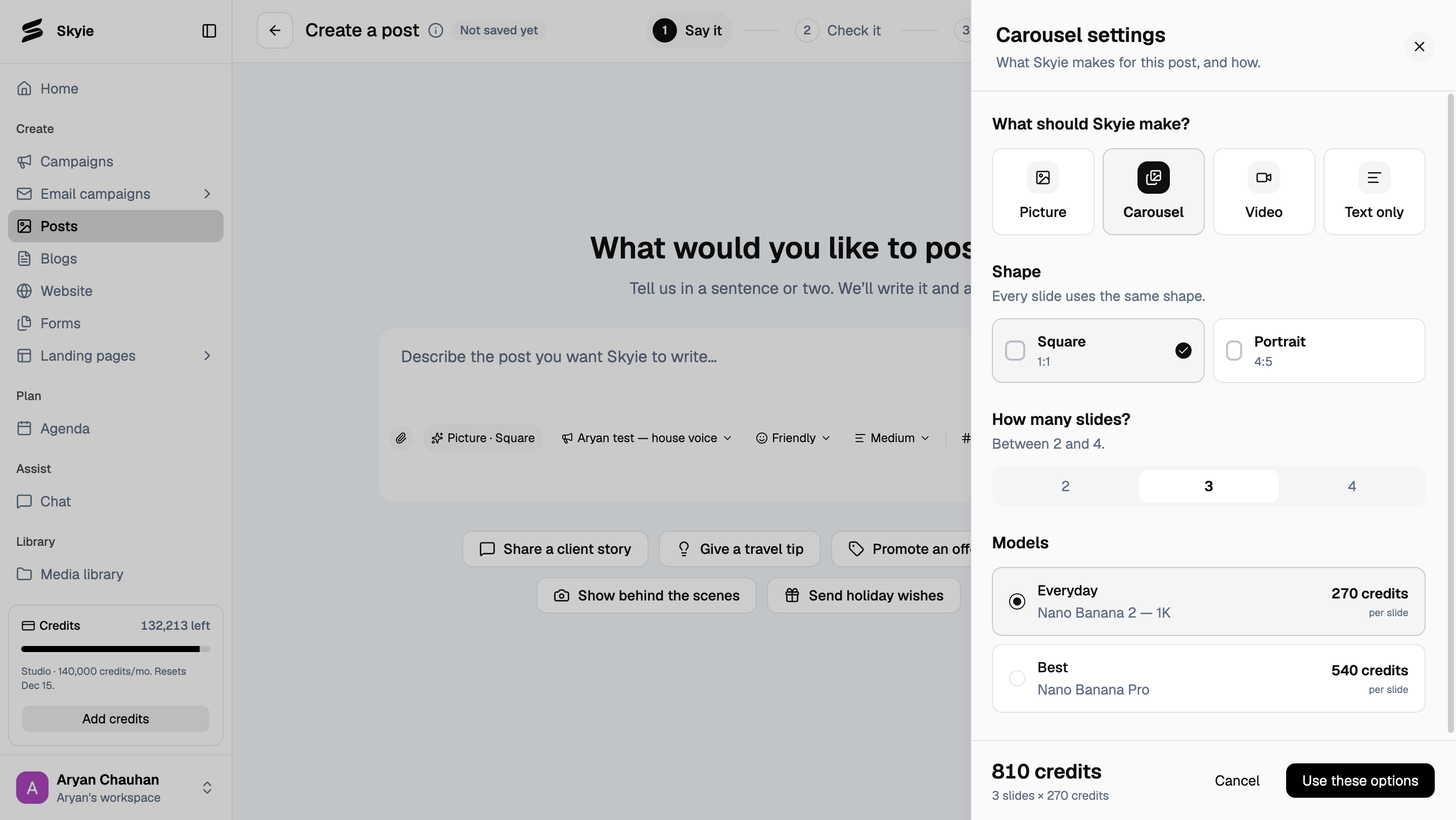
- Shape: Square or Portrait. Every slide uses the same shape.
- Slides: pick between 2 and 4.
- Models: Everyday or Best, same quality difference as Picture, priced per slide. The total credit cost shown at the bottom is the slide count times the credits per slide.
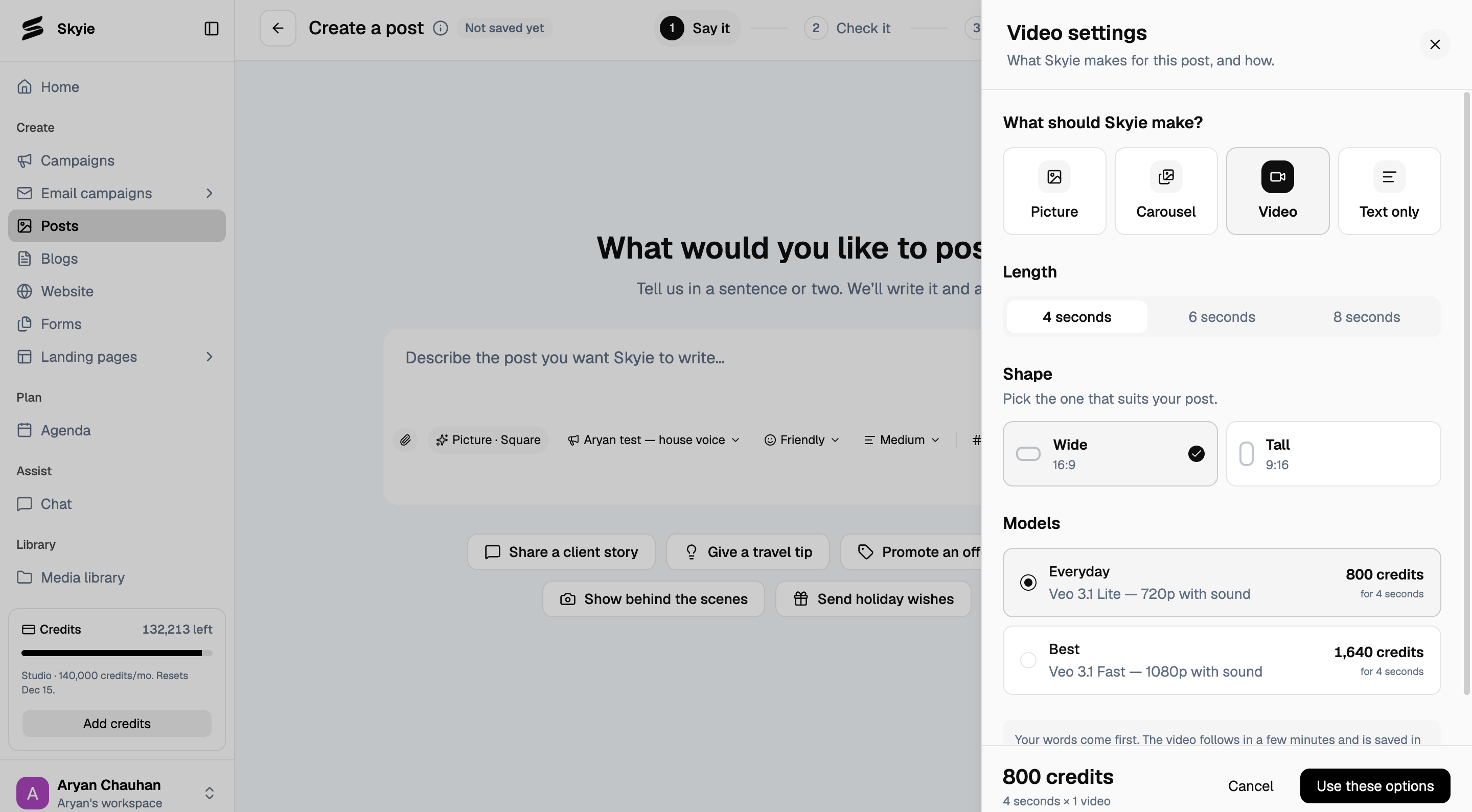
- Length: 4, 6, or 8 seconds.
- Shape: Wide (16:9) or Tall (9:16), depending on where you’re posting.
- Models: Everyday (Veo 3.1 Lite, 720p) is the standard option. Best (Veo 3.1 Fast, 1080p) is higher resolution, at a higher credit cost.
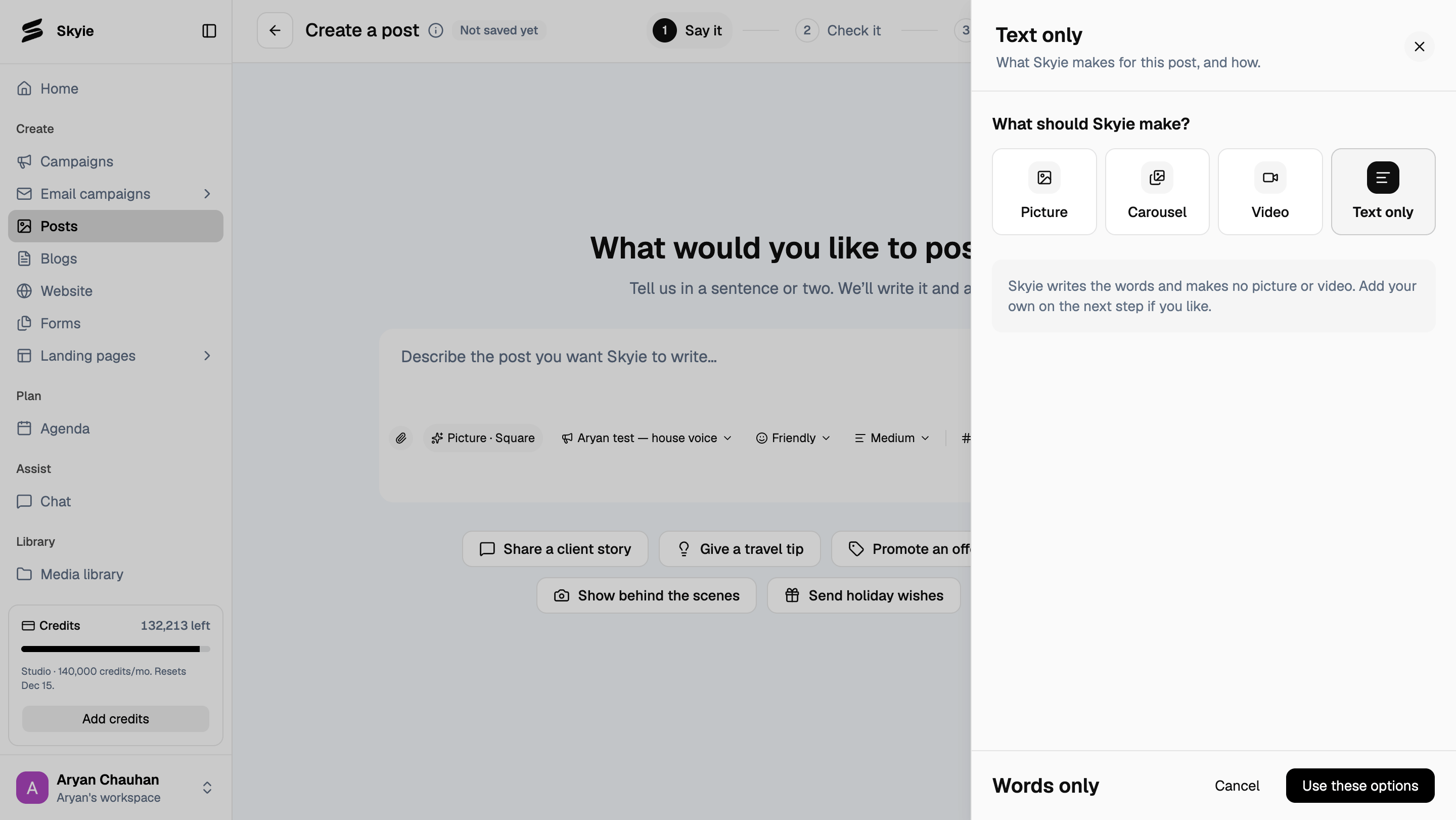
Your words come first. The video itself takes a few minutes to generate and is saved to the post once it’s ready. You don’t need to wait on this screen for it.
Check it
Skyie generates the caption and any picture, carousel, or video, then takes you to Check it.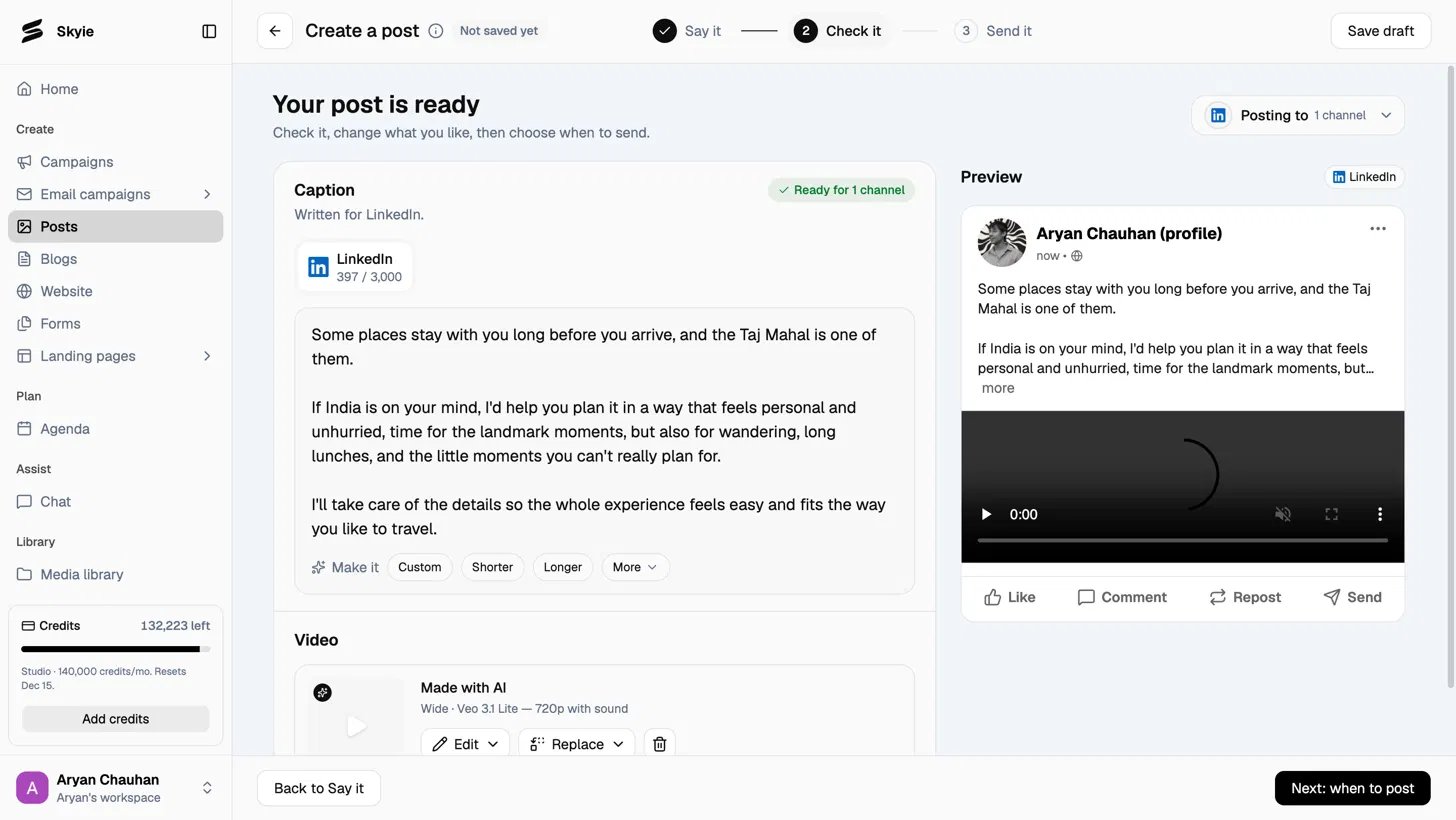
- Caption: shows which channel it was written for (for example, LinkedIn) and the character count against that channel’s limit. Under Make it, click Shorter or Longer to have Skyie rewrite the caption to that length, Custom to type your own instruction for how to change it (for example “make it funnier”), or More for additional quick edits, all without starting the post over.
- Picture, Carousel, or Video: shows what Skyie made. Use Edit to adjust it, Replace to generate a different one, or the trash icon to delete it.
- Preview: a live mockup of how the post will look on the channel you’re posting to.
- Posting to: change how many and which channels the post goes out to from the dropdown at the top right.
Send it
Choose when the post goes out:- Post now: goes out as soon as you click Post now.
- Pick a day: set a date, time, and timezone, and Skyie posts it for you. Use Change timezone if it’s showing the wrong one, or one of the quick picks (In 1 hour, Tomorrow, 9:00 AM, Monday, 9:00 AM).